
Job history and audit trail
Read a job's Activity tab to see every change, who made it, and when.
Every job records what happened to it on its Activity tab — the last tab on the job page.
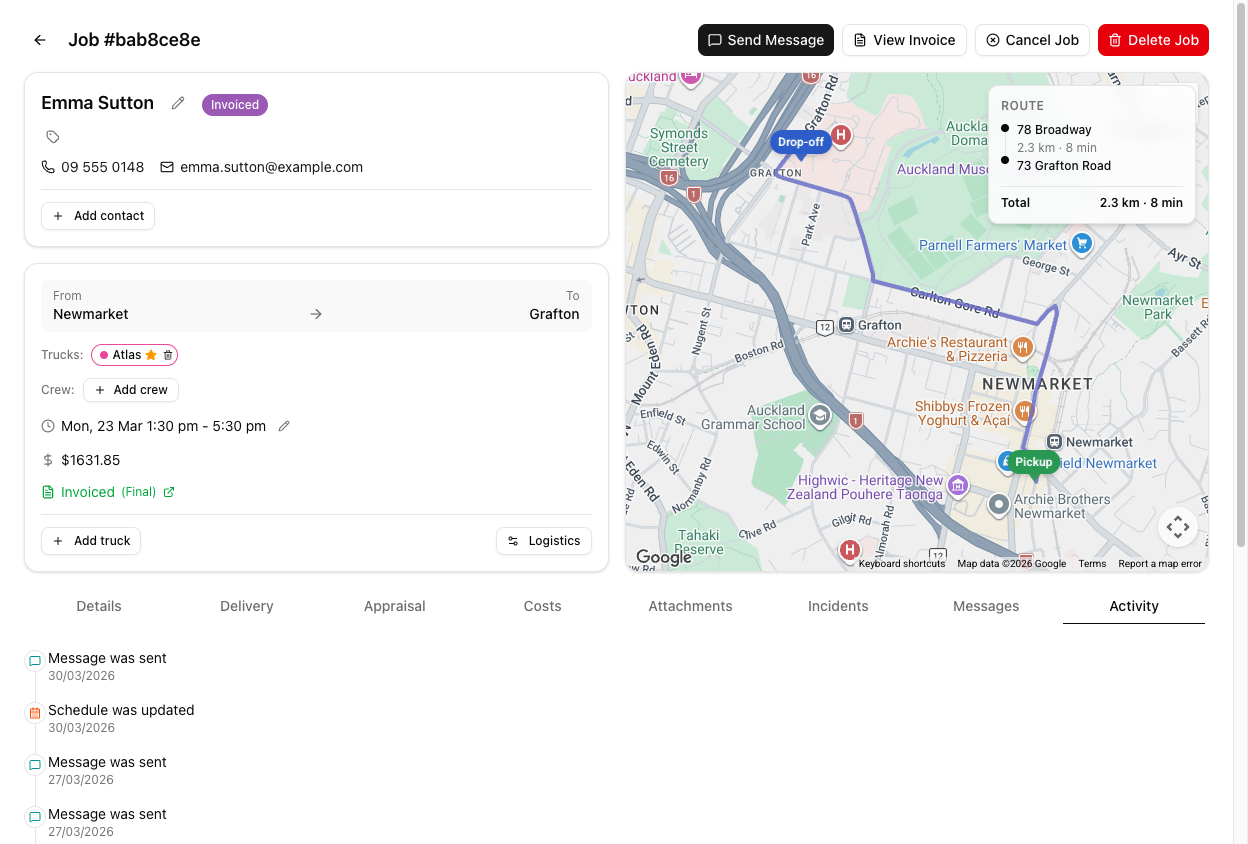
What gets recorded
| Entry | Logged when | | --- | --- | | Job was created | The job first existed | | Status was changed | Any status move, by a person or an automation | | Schedule was updated | Date or times changed | | Truck assignment was changed | Trucks added, removed, or swapped | | Contact was changed | A different contact linked | | Location was changed | An address edited, added, or removed | | Notes were edited | Notes changed | | Message was sent | An SMS or email went out | | Invoice was created | An invoice was raised | | Delivery started / stopped / completed | The crew's time tracking | | Delivery times updated / edited / deleted | Delivery records changed |
Entries are newest first. Recent ones show relative time — "5 mins ago", "3 hours ago" — and after about a month they switch to a plain date.
What it does not record
The Activity tab is narrower than it looks. Three things people expect to find here are not:
Delivery status of messages. Message was sent means it left. Whether it was delivered, failed, or bounced is on the Messages tab, not here.
Xero sync. Invoice was created is logged. Whether it reached Xero, and whether that succeeded, is in the Xero audit log under Settings > Integrations.
The old and new values. You get Status was changed, not "Booked → Cancelled". The tab tells you what kind of change happened and when, not what the value used to be.
Automatic changes are logged too
Status changes made by a message template's Auto-change Status, or by a workflow, appear here as ordinary Status was changed entries, marked as automatic.
This is the answer to "who moved this job and why does nobody remember doing it?" — usually nobody did. A template moved it.
Tutorial: reconstruct a disputed job
The customer insists they booked Tuesday and were never told it moved. Work out what actually happened.
Go to the job's Activity tab and scroll to the oldest entry. Job was created is where the story starts. Reading upward gives you the sequence in the order it happened.
Look for Schedule was updated. That is the moment the date moved, and it tells you when and who.
What it will not tell you is what the date changed from. The tab records that a change occurred, not the values. If you need the original date, the customer's booking confirmation email is better evidence than this tab.
Look for a Message was sent entry after the schedule change. If there isn't one, nobody told them — the customer is right, and that is your answer.
If there is one, you are not finished. Message was sent only means it left VanMan.
Open the Messages tab and read that message's delivery badge. Failed or Bounced means you sent it and it never arrived — you did the right thing and the customer still never heard. That is a completely different conversation from "we forgot".
Expand the message on the Messages tab. A confirmation with a broken variable can arrive perfectly and say nothing useful. "Delivered" and "understood" are not the same.
If the job's status changed at an odd moment, look for a Status was changed entry that nobody claims. A message template with Auto-change Status set will move a job silently — that is by design, and it is logged here.
Put the conclusion in the job's Notes, with the sensitive part hashed:
Confirmed we emailed the date change on the 12th. ##Email bounced — their address on file is wrong. Our error for not following up. Do not charge the change fee.##
Now the next person to open this job inherits the finding instead of redoing the investigation.
Activity plus Messages together answer most disputes: Activity tells you what your team did, Messages tells you whether the customer actually received it. Neither is sufficient alone.