
Viewing live truck locations
Read the live map — markers, staleness, and the job context behind each truck.
Fleet > Live Map shows where every reporting truck is. It updates live, falling back to a 30-second refresh if the live connection drops.
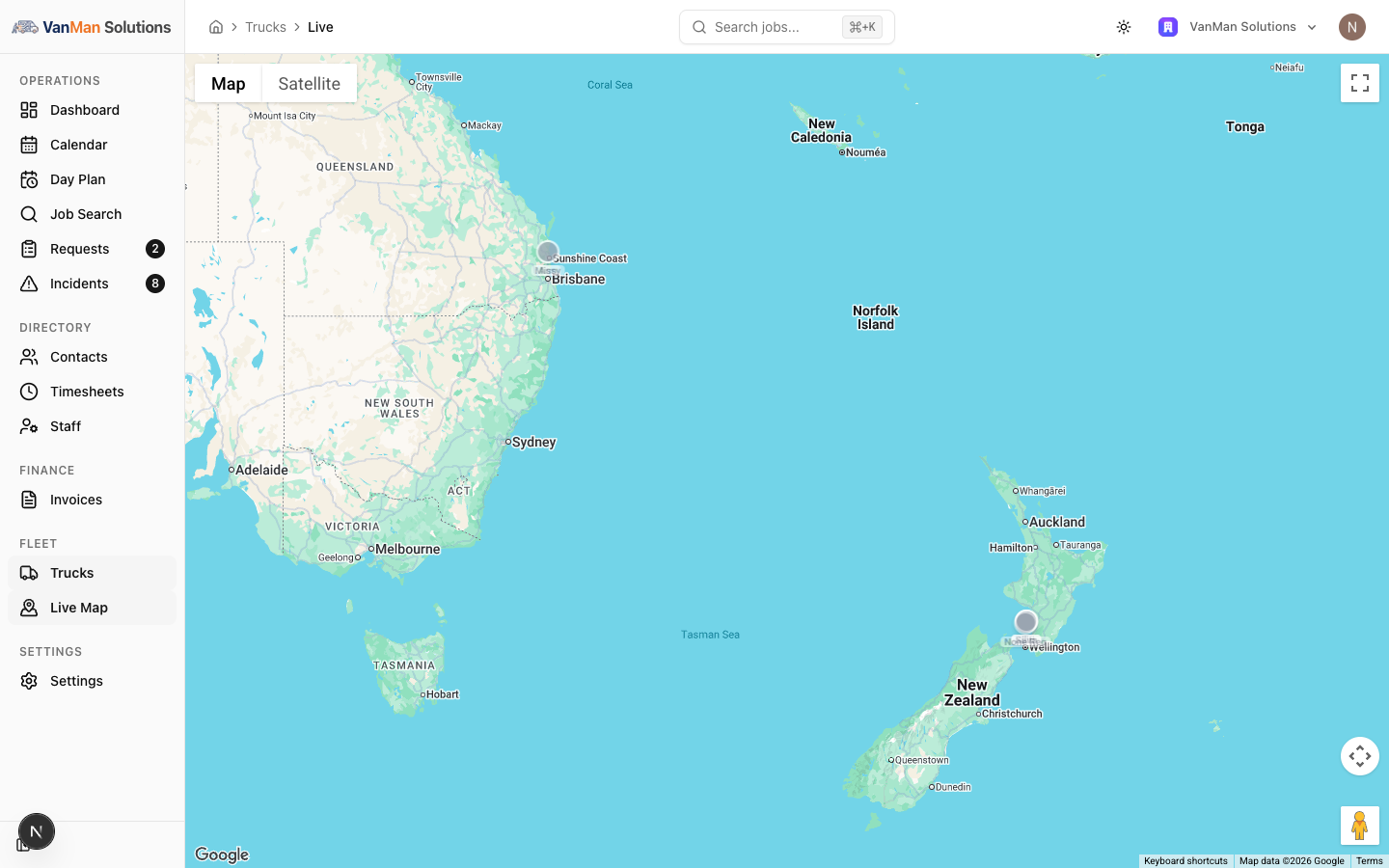
Reading a marker
The truck's name is always visible under its marker — you do not need to hover or click for that. The dot carries the truck's colour.
The colour of the marker is the important part:
- Full colour — reported within the last 5 minutes. Current.
- Greyed and faded — over 5 minutes old. Stale.
- Click it and see "Last seen" in red — over 30 minutes.
Markers grey out on their own as time passes; you do not need to refresh.
A marker never disappears. Once a truck reports even once, it stays on the map forever at its last known position. A driver closing the app does not remove it — the marker just goes grey.
So the pin tells you nothing on its own. The colour is the information. A grey pin means "this is where it was, and nobody knows since."
Clicking a marker
Click for an info window with:
- The truck name and colour
- The driver's name
- "Updated …", or a red "Last seen …" if over 30 minutes
- If the truck has a job today — the job's status badge, the customer, From: and To:, and a View Job link
That View Job link is the fastest route from "where is that truck?" to "what is it doing?".
Speed and heading are not shown. The app reports them, but nothing in the web app displays them — the marker does not rotate to show direction, and there is no speed readout. Do not promise a customer a speed.
What the map does not do
The map centres on your fleet once, on load, and never again. Trucks that drive off-screen stay off-screen — the view does not follow them. Pan and zoom yourself.
There is no history. Only the latest position per truck is kept. You cannot review where a truck went earlier — see how truck tracking works.
If no truck has ever reported, you get "No truck locations reported yet."
Tutorial: answer "where is my mover?"
A customer rings asking where the crew is.
Fleet > Live Map.
Names sit under the markers, so you can read the fleet without clicking anything.
This is the step that stops you misleading a customer.
Full colour — that is where the truck is, within the last five minutes. Safe to say so.
Grey — you are looking at a position that could be hours old. Saying "they're twenty minutes away" from a grey marker is how you get a second angry phone call.
The info window gives you the driver's name, when it last updated, and the job's From and To.
If it says "Last seen" in red, the app has not reported in over half an hour. Ring the driver — do not read the map to the customer.
Click View Job. The job's Activity tab tells you whether the delivery has actually been started — often a better answer than a dot on a map. "They're on site now" beats "they're near Newtown".
No marker at all means it has never reported. That is usually the driver's app not being bound to a truck, or location permission never granted. See how truck tracking works.
A marker with no truck name is a truck that has been deleted. Its last position lingers.
The Day Plan shows truck positions on a map alongside the day's timeline, so you get position and schedule together. Find it under Day Plan in the Operations group.