
Connecting Gmail
Connect a shared Gmail inbox so job-related emails are captured onto jobs automatically.
Connecting Gmail lets VanMan capture emails that carry a job number onto the right job's Messages tab, and lets you reply from inside VanMan. It sits on the Gmail Integration card at Settings > Integrations.
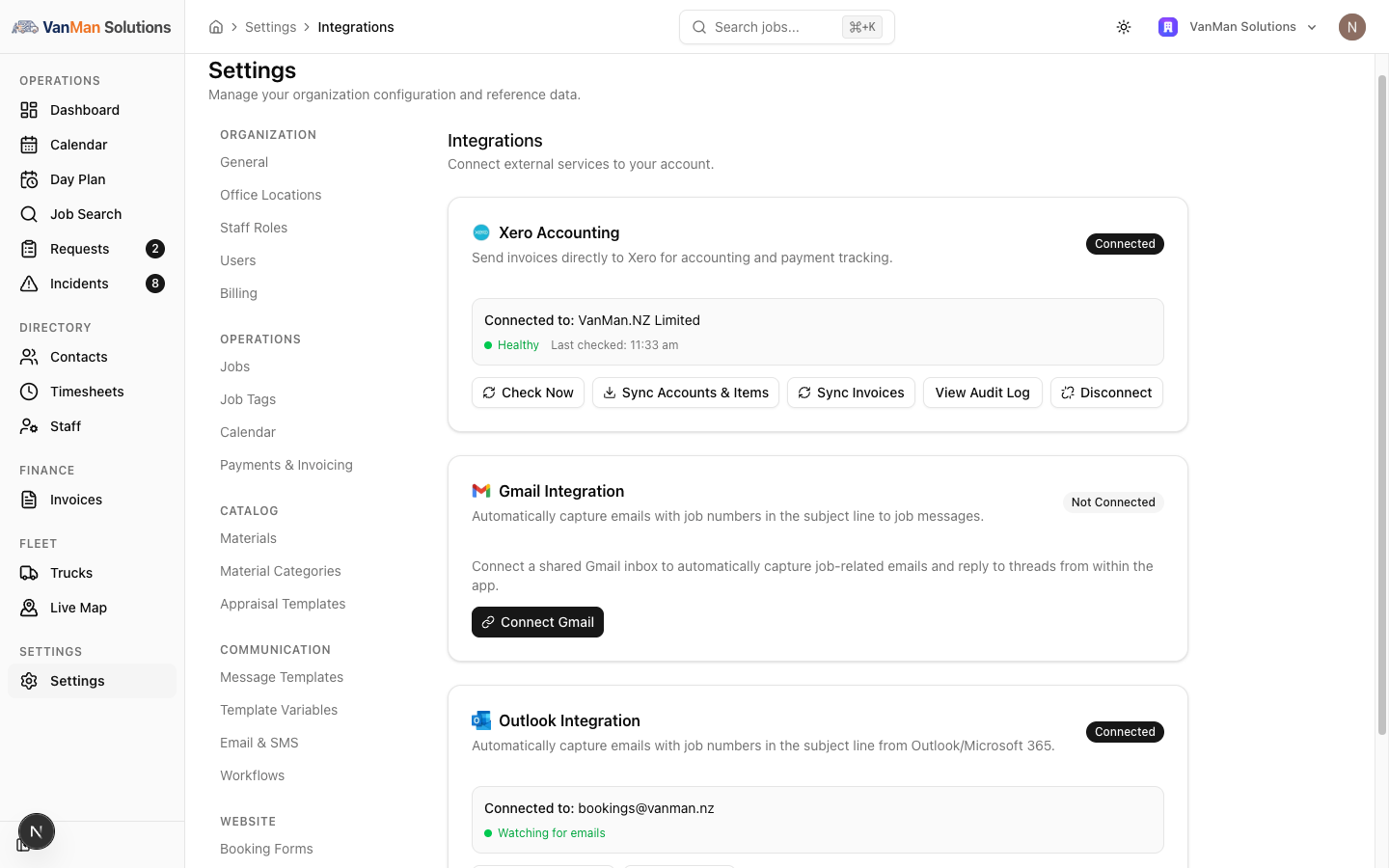
This connects one shared inbox for the whole business, not your personal email. Connect the central address customers write to — bookings@ or office@. Everyone then works from what that inbox captures. There is no per-user email connection.
Connect
On the Gmail Integration card, click Connect Gmail. You are taken to Google to sign in and approve access. Connecting needs a role that can edit settings.
Grant the access Google asks for. VanMan needs to read the inbox (to find job-related emails) and to send (so you can reply from within the app).
Back on the card, the status shows Connected and a green Watching for emails. If it instead shows the watch is not active, the connection needs attention.
Granting access means VanMan can technically read the whole inbox — that is how it finds the job-related ones. It only stores emails that match a job number; it does not keep your other mail. But this is a shared business inbox by design, so connect one your team is comfortable being shared, not a personal account.
When it's connected
The card shows Connected, the inbox address, a Watching for emails indicator, and Test Connection / Disconnect buttons. If the connection lapses, a Reconnect button appears — use that rather than disconnecting and starting over.
What happens next
Incoming emails whose subject carries a job number appear on that job's Messages tab. How the matching works — and why the job number matters — is covered in how email job matching works.
Tutorial: connect your bookings inbox
You run everything through bookings@yourcompany.com and want replies to file themselves.
Before you start, make sure the Google account you are signed into in this browser is the bookings@ one, not your personal Gmail. The connect flow uses whichever account you approve — connecting the wrong one is the most common mistake.
Settings > Integrations → Connect Gmail on the Gmail card → sign in as bookings@ → approve.
The card should read Connected with a green Watching for emails. That green state is the one that matters — it means new mail will be captured.
Send a customer a message from a job (so the subject carries the job number), have them reply, and check the job's Messages tab. The reply filing itself there is proof the whole chain works.
Google connections can lapse. If the card later shows the watch is not active, or a Reconnect button appears, click Reconnect. Do not leave it — a lapsed connection silently stops capturing, and you only notice when a reply goes missing.
Not sure whether to use Gmail or Outlook? See Gmail vs Outlook. You connect one shared inbox, so the choice is simply which mail provider your business already runs.