
Reporting an incident
Log a damage or safety incident from the web or from a job, with the real fields and labels.
An incident is a damage or safety report. You can log one from the Incidents page, or from a job's Incidents tab. Reporting needs the incidents permission.
The form
On the Incidents page, click Report incident.
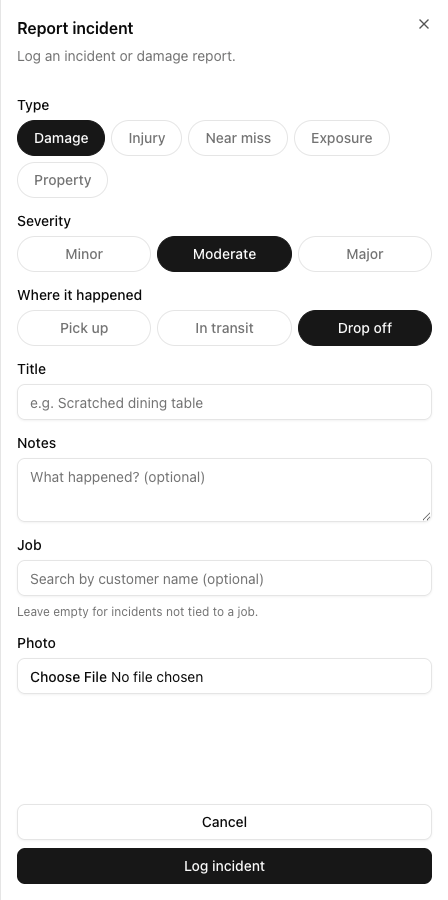
The fields:
- Type — Damage, Injury, Near miss, Exposure, or Property. Defaults to Damage.
- Severity — Minor, Moderate, or Major. Defaults to Moderate.
- Where it happened — Pick up, In transit, or Drop off. Defaults to Drop off.
- Title (required) — a short description.
- Notes — optional detail.
- Job — optional. Search by customer name to link it. Leave empty for an incident not tied to a job.
- Photo — optional (JPEG, PNG, WebP, HEIC).
Click Log incident.
The button is Log incident, not "Create" or "Submit". Small thing, but it is what you are looking for at the bottom of the form.
From a job
Open a job and use its Incidents tab, then Report incident. An incident logged here is automatically tied to that job — you do not search for the customer, because you are already on their job.
The AI bit is mobile-only
The web form has no AI assistance. The AI photo assessment — where a picture of the damage is analysed automatically — happens only in the mobile crew app, at the moment of capture in the field. On the web you fill the form in yourself.
So if you are documenting an incident a customer emailed you about, the web form is where you do it, plainly and by hand.
Why linking to a job matters
An incident linked to a job can be followed up with the customer directly (email or SMS with the incident details filled in). An unlinked incident cannot — there is no customer to message. If you know the job, link it.
Tutorial: log damage a customer reported by email
The customer emailed to say a bookcase was scratched on their move last week.
Open the customer's job and go to its Incidents tab, then Report incident. Starting from the job means it is linked automatically — and linking is what lets you follow up with them later.
Set Type to Damage and Severity to Moderate (adjust to the real severity — a scratch is not a Major). Set Where it happened to whichever end of the move it occurred.
Title: Scratched bookcase reported post-move. The title is what shows in the office list, so make it self-explanatory — someone triaging should not have to open it to know what it is.
In Notes, record what the customer said and any reference to their email. This is your account of the claim.
The customer sent a picture — add it under Photo. On the web there is no AI analysis; you are simply attaching evidence.
Click Log incident. It now appears in the office Incidents list as Needs action, and on the job's Incidents tab.
Because you linked it to the job, you can now message the customer with the incident details. See following up with a customer.