
Adding staff members
Add your crew as staff records — name, role, employment, rate, licence, and emergency contact.
Staff are your crew — the people you assign to jobs. They live at Staff in the Directory group.
A staff record is not a login. Adding a staff member does not invite anyone to VanMan — it creates a record of a person you can schedule. User accounts (logins and access roles) are separate, and live at Settings > Users, not on any "Account & Billing" page.
Someone can be crew on jobs with no login at all, and someone can have a login without being crew. See managing user roles.
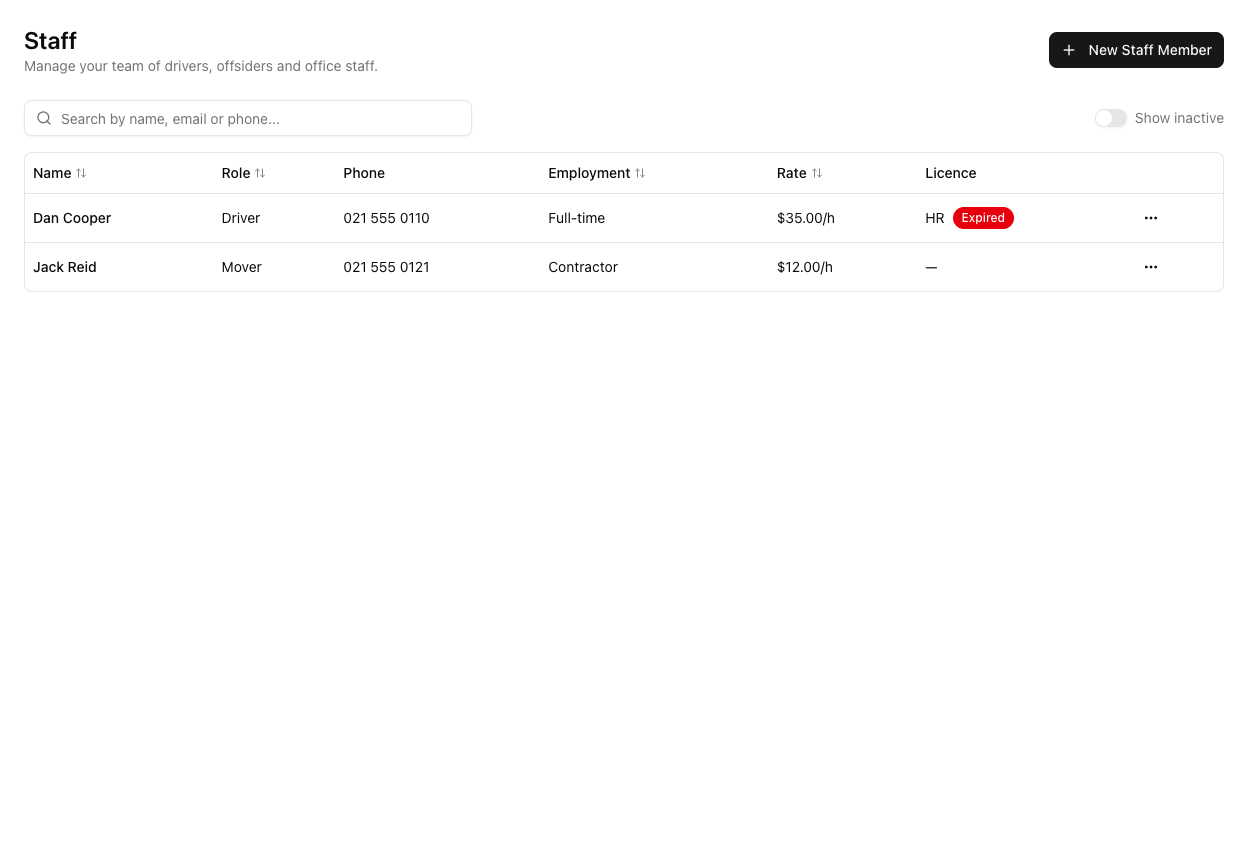
Adding one
Click New Staff Member. Only Name is required; everything else is optional but useful:
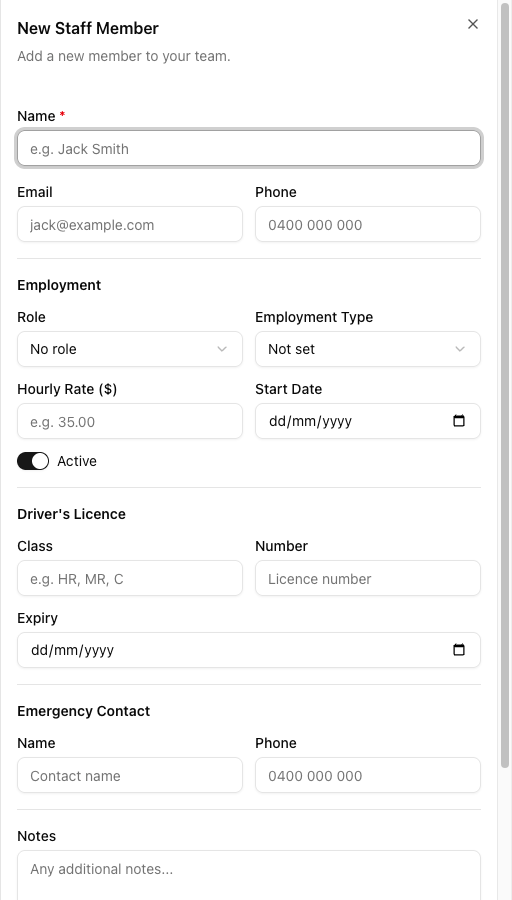
- Name (required), Email, Phone
- Role — a staff role (Driver, Mover, and so on) from your Staff Roles list. This is a crew job title, not an access level.
- Employment Type — a separate field: Full-time, Part-time, Casual, or Contractor.
- Hourly Rate — feeds timesheets and labour costing.
- Start Date, and an Active toggle.
- Driver's Licence — Class, Number, Expiry.
- Emergency Contact — Name and Phone.
- Notes.
Click Create Staff Member.
Role and Employment Type are different fields, and neither is the user access role. "Role" here is a crew title (Driver, Mover). "Employment Type" is how they are engaged (Full-time, Contractor). The access role (Admin, Operator, Driver) that governs what they can do in the app is set separately under Settings > Users. Three different concepts that all touch the word "role" — keep them apart.
Active vs inactive
Only active staff can be assigned to jobs. The list has a Show inactive toggle. Set someone inactive when they leave rather than deleting them, so their history on past jobs stays intact.
Tutorial: onboard a new mover
A new casual mover starts next week.
Go to Staff and click New Staff Member.
Name is the only required field, but add their Phone — a dispatcher needs it — and their Email if you have it.
Set Role to Mover (their crew title) and Employment Type to Casual (how they are engaged). These are two fields answering two questions; fill both.
Set Hourly Rate. Without it, their timesheet lines have no pay figure and your labour costing is blind on this person. This is the field most worth not skipping.
If they will ever drive, fill in Driver's Licence Class, Number, and Expiry. The list flags an expired licence in red — which is a compliance prompt you want, not noise.
Movers do physical work. Fill in the Emergency Contact — it costs a moment now and matters on the one day it is needed.
Keep Active on so they can be scheduled, and click Create Staff Member.
Being an active staff member with a role makes them schedulable — but confirm the Role you gave them exists in your Staff Roles list, or the crew picker will not offer them cleanly. See setting up staff roles.
A casual mover working from the crew app also needs a user account — invite them at Settings > Users as a Driver. If they only ever appear on other people's jobs and never sign in, the staff record alone is enough.