
Assigning crew to a job
Build a job's crew, set each person's role on the job, and put them on the right truck.
Crew is built in the job's header — the panel above the tab bar, not inside a tab.
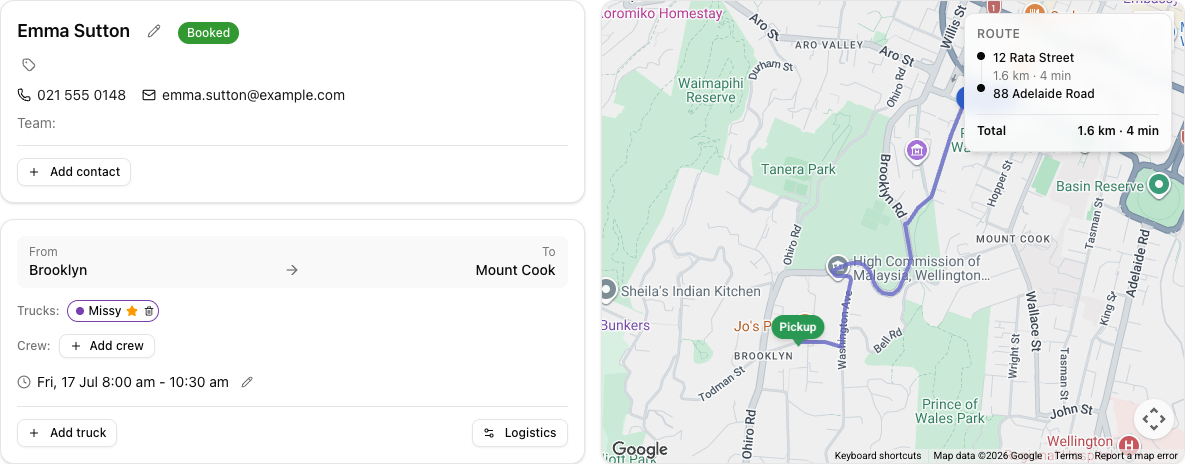
The Crew row is in the job's overview header, above the tabs. If you have been looking for it inside the Details tab, that is why you could not find it — it is not there.
Adding crew
Click Add crew and pick from the list. Only active staff appear, each shown with their staff role in parentheses.
Once someone is on the job, click their badge to open a menu with:
- Role on job — Leader, Driver, or Offsider. This is their role on this job, independent of their standing staff title.
- On truck — which of the job's trucks they ride. This only appears when the job has trucks assigned.
- Remove from job.
There is no dedicated "mark as leader" control. Leader is one of the three options under Role on job — set it there.
Crew and trucks
On a multi-truck job, On truck is what turns a crew list into a plan. Each person's badge picks up their truck's colour once assigned, so you can see who is in which vehicle at a glance.
Tutorial: crew up a two-truck move
Four people, two trucks, and you want it unambiguous who is where.
On the job header, make sure both trucks are on via Add truck. The On truck option only appears once there are trucks to assign to — so trucks come before crew.
Click Add crew and add each person. Only active staff show, so if someone is missing, check they are active on the Staff page — not deleted, just inactive.
Click a crew badge → Role on job → Leader for the person heading up the first truck. Do the same for the second truck's lead.
Their standing staff title does not matter here — a Mover can be this job's Leader. Role on job is per job.
For each person, open their badge → On truck → pick their vehicle. Two on the first truck, two on the second.
This is the step that removes the ambiguity. Without it you know who is working, not who is riding where — and on the day that is the difference between two crews and one confused one.
Each badge now carries its truck's colour. A quick glance at the crew row tells you the split is right — two of one colour, two of the other. A badge with no colour is someone you assigned to the job but not to a truck.
Put someone on the wrong truck? Open their badge, change On truck — no need to remove and re-add. To take someone off entirely, use Remove from job in the same menu.
Which staff appear in Add crew depends on their being active and having a staff record — not on their user login. A crew member without a login still appears here. Their login (if any) is a separate matter under Settings > Users.