
Auto-created draft timesheets
How a job status auto-generates draft timesheet entries, and how crew hours flow from the app.
VanMan can create draft timesheet entries for a job's crew automatically, so nobody hand-enters hours for a routine job. It is driven by a job status setting.
The setting
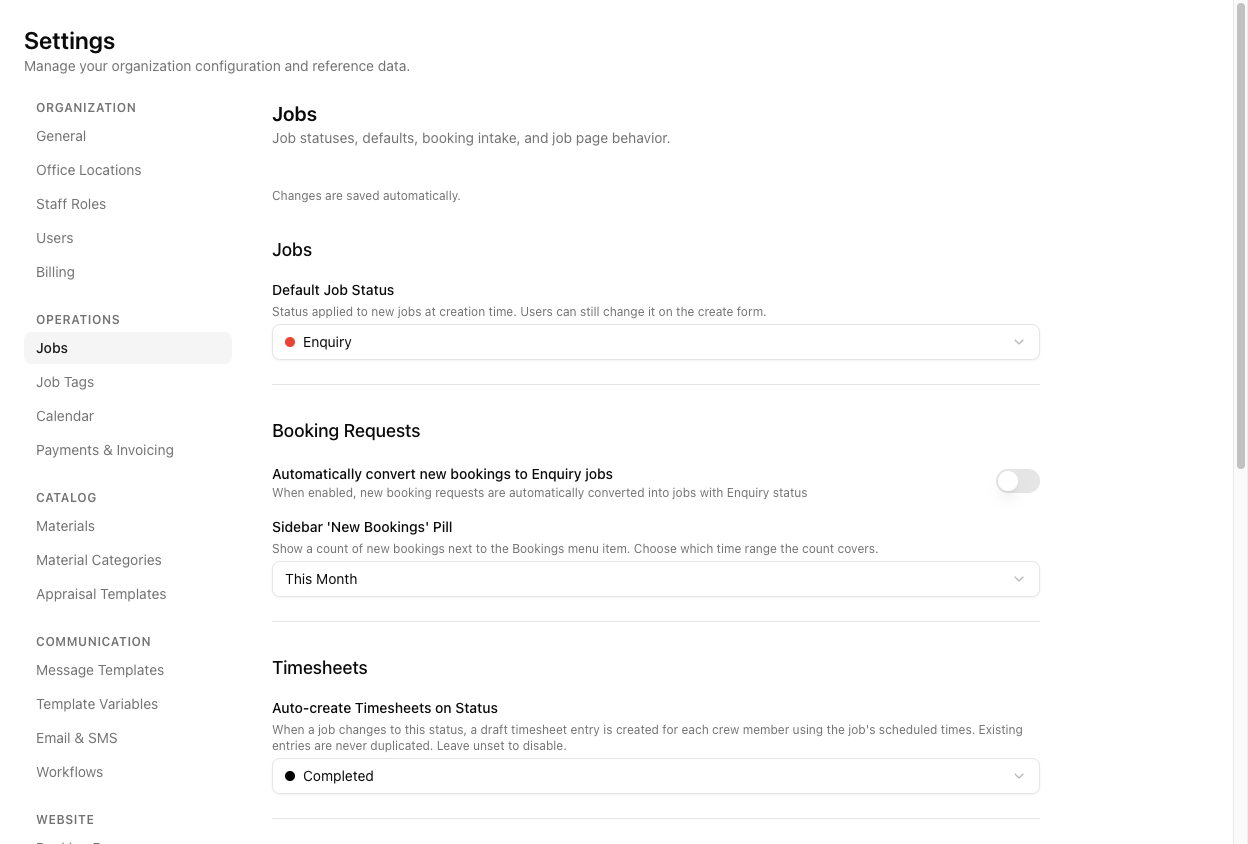
At Settings > Jobs, under the Timesheets group, is Auto-create Timesheets on Status: "When a job changes to this status, a draft timesheet entry is created for each crew member using the job's scheduled times."
Set it to a status (a new account uses Completed), or leave it unset to switch the feature off.
What actually triggers it
It is narrower and more specific than "the job hits the status". All of these must hold:
- The job's current status equals the target status, and
- the job has both a start and an end time, and
- the job has assigned crew.
Given that, it fires when a job is moved into the target status, when crew is added to a job already in that status, or when a job is created directly in that status with crew on it.
If a job has crew but no end time, no timesheets are created — the feature needs both time bounds to know the hours. A job with no crew produces nothing either. So "I set it to Completed and nothing happened" is usually a missing end time or missing crew, not a broken setting.
Each created entry uses the job's scheduled start and end times, a zero break, and draft status. It is idempotent per job: a crew member who already has an entry for that job is skipped, so re-triggering does not duplicate.
Then you approve them
Auto-created entries are drafts. They are a starting point from the scheduled times — not necessarily the actual times worked. Someone still reviews and approves them, adjusting where the day ran long or short.
Crew hours from the app
The crew's mobile app also feeds timesheets when they submit at end of day.
There is a subtlety worth knowing: the entries created from a mobile end-of-day submission are anchored to the shift and the submitted minutes, not stamped from each job's exact clock times. So treat mobile-submitted hours, like auto-created ones, as drafts to review — not as gospel.
Separately, editing a crew member's tracked times on a job's Delivery tab can push the change into the linked timesheet entry (with a prompt), unless that entry is already approved.
Tutorial: set up hands-off timesheets for routine jobs
You want completed jobs to generate their crew's hours automatically.
Go to Settings > Jobs and set Auto-create Timesheets on Status to Completed (or whichever status marks a job done for you).
This is the make-or-break condition. Auto-create needs a start and an end time on the job. If your team leaves end times blank, no timesheets appear and the feature looks broken. Get end times filled in as a habit.
No crew, no timesheets — there is nobody to create an entry for. Assign crew on the job before it completes. See assigning crew to a job.
Move a fully-crewed job with both times set to Completed. Open Timesheets for that week — each crew member now has a draft (amber) entry from the scheduled times.
Scheduled times are the guess; the day is the truth. If the job ran an hour over, open the entry and fix the finish time. Auto-create saves the typing, not the checking.
If the job bounces out of Completed and back, or you add another crew member, VanMan will not double up existing entries — it only creates for crew who do not already have one. Safe to re-trigger.
These are drafts. Approve them to lock the rate before export — see approving and exporting.