
Setting up job alerts
Flag jobs that need attention with coloured alerts on the calendar, driven by workflows.
A job alert is a coloured flag on a job's calendar card, put there by a workflow when something needs a human. It is how you surface "this job has been sitting untouched for a week" without anyone having to go looking.
The Set Job Alert action
Drag Set Job Alert from the Actions group in the Node Palette and click it to configure.
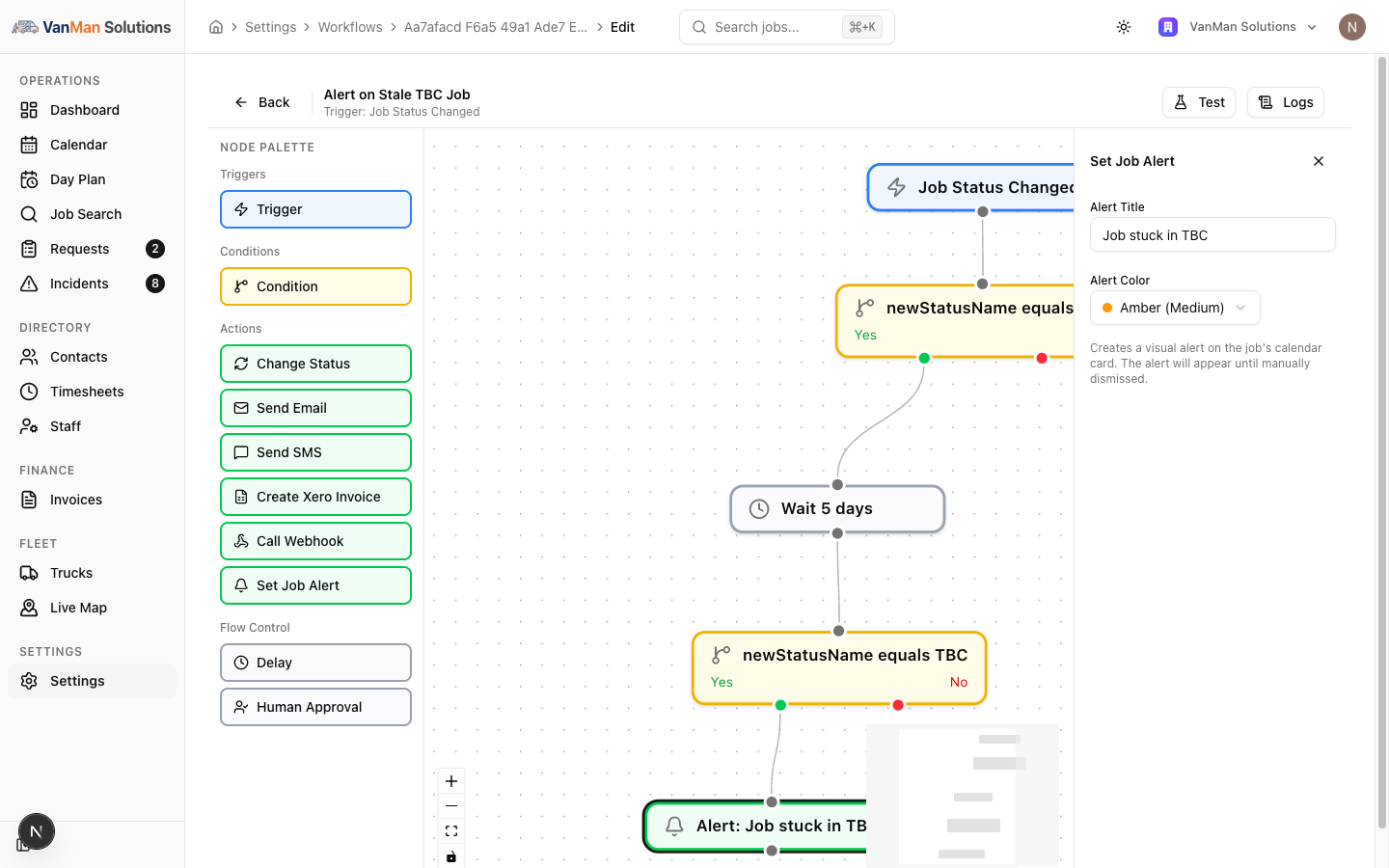
Alert Title — free text, and it is what your team reads on the calendar. Make it an instruction, not a label: Job stuck in TBC tells someone what to do about it; Alert does not.
Alert Color — three severities:
- Red (High)
- Amber (Medium) — the default
- Blue (Low)
The node's label becomes Alert: <your title>.
How alerts behave
Alerts stay until a person dismisses them. Nothing clears them automatically — not the job changing status, not the condition that raised them ceasing to be true. If a workflow flags a stale job and someone then confirms it, the alert is still sitting there. Dismissing it is a manual act.
The alert's colour also tints the job card's background on the calendar. When a job has several alerts, the highest severity wins — one red alert among three blues shows red.
Alerts do not change a job's status. They are a visual flag, nothing more.
Where alerts show, and where they don't
On the calendar — the job card carries an alert indicator. Click it for a popover listing the alerts, each with a dismiss button.
On the Day Plan — only as a plain count, like "2 alerts", inside the job's info marker. No colour, no indicator, no dismiss.
The Day Plan is not equivalent to the calendar here. If your dispatcher works from the Day Plan, they will see that alerts exist but not what they say or how urgent they are. Alerts are a calendar feature first.
You cannot raise an alert by hand
There is no button anywhere to add an alert to a job manually. Alerts are created only by workflows. The job popover lets you dismiss them; it does not let you create them.
If you want a way to flag a job by hand, alerts are not it — use the job's notes, or a job tag.
Tutorial: flag enquiries nobody has followed up
Enquiries are going cold. Build an alert that catches them at three days.
Create a workflow. Set Trigger Event to Job Created — an enquiry going stale starts the moment the job exists.
Add a Condition: statusName equals Enquiry. Jobs created already Booked do not need chasing.
Add a Delay on the condition's Yes handle. Duration 3, unit Days.
Add a second Condition after the delay: currentStatusName equals Enquiry.
Use currentStatusName, not statusName. The trigger's field is three days stale by now and would still say "Enquiry" even for a job you quoted and booked on day one. currentStatusName is re-read at this moment. Get this wrong and you will flag every enquiry you ever won.
Add Set Job Alert on the second condition's Yes handle. Set Alert Title to No follow-up in 3 days — call them and Alert Color to Red (High).
Red is right here: an unfollowed enquiry is lost revenue, and it should out-rank an amber on the same card.
A job that is no longer an Enquiry needs nothing. The branch ends and the log shows Skipped — that is success.
Click Test against a real enquiry's Job ID, then Back, then click the Status badge to make it Active.
Open the calendar. Flagged jobs carry the indicator. Click it, read the alert, call the customer — then dismiss it.
Dismissing is the part teams forget. Nothing clears an alert for you, so an un-dismissed board fills with flags for jobs that were dealt with weeks ago, and people stop looking. An alert everyone ignores is worse than no alert.
Keep alert colours meaningful. If everything is Red (High), nothing is. Reserve red for money or a customer waiting; use amber for process drift and blue for nice-to-know.