
Understanding triggers and actions
The complete list of workflow triggers, actions, and flow control nodes, and what each one really does.
Every workflow is one trigger, optionally some conditions and waits, and one or more actions. This is the complete vocabulary.
The ten triggers
A workflow has exactly one, chosen when you create it and fixed thereafter.
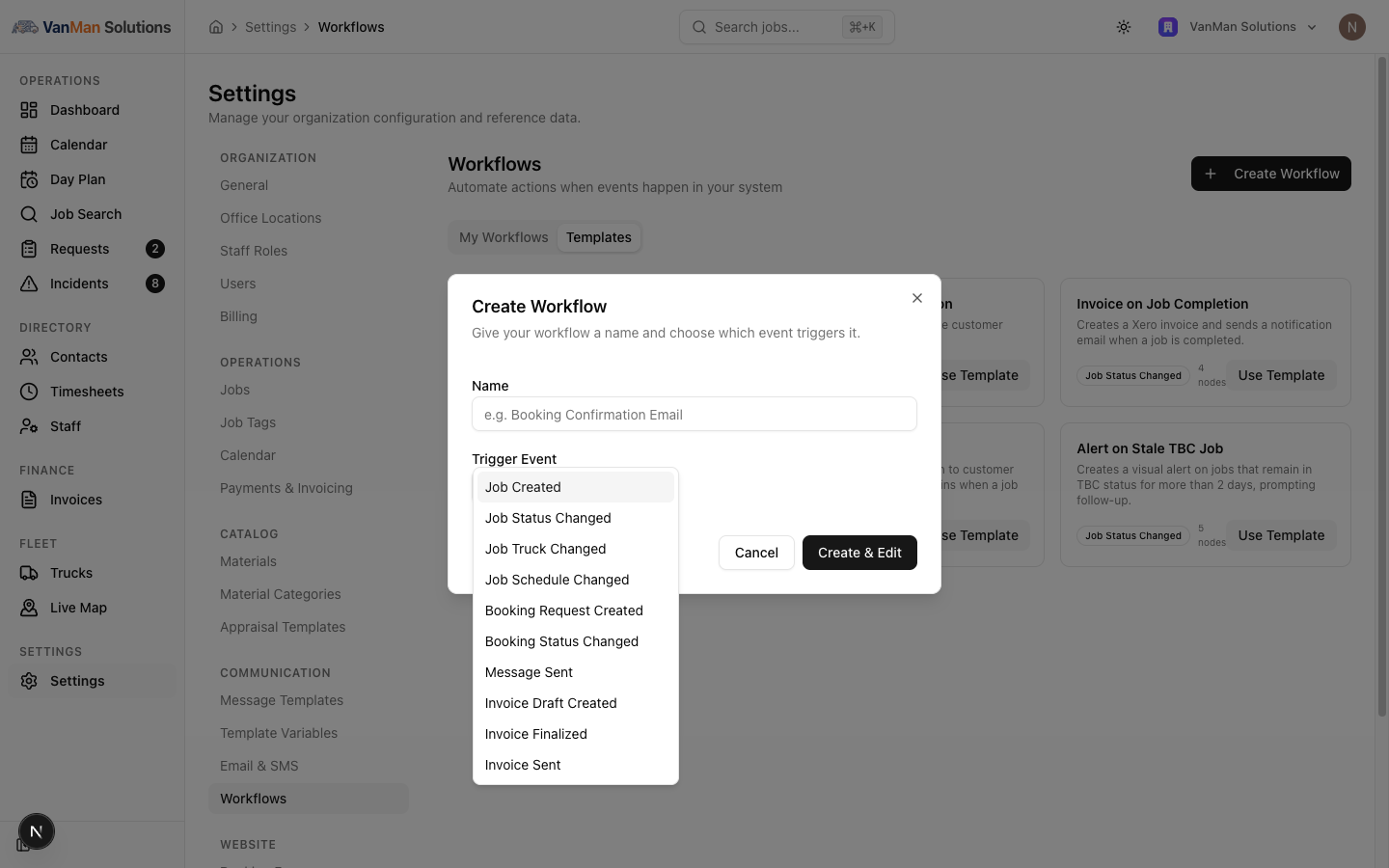
| Trigger | Fires when | | --- | --- | | Job Created | A job is created, however it was created | | Job Status Changed | A job moves from one status to another | | Job Truck Changed | A job's truck assignment changes | | Job Schedule Changed | A job's date or times change | | Booking Request Created | A customer submits your booking form | | Booking Status Changed | A booking request moves through the pipeline | | Message Sent | A message goes out to a customer | | Invoice Draft Created | A draft invoice is created | | Invoice Finalized | An invoice is finalised | | Invoice Sent | An invoice is sent |
Note there are three separate invoice triggers, not one generic "invoice created". Draft Created, Finalized, and Sent are different moments and usually want different automations. Picking the wrong one is a common reason a workflow fires at an unexpected time — or never.
Trigger filters
Only Job Status Changed and Booking Status Changed offer filters, and they offer the same pair: From Status and To Status. Set them to narrow the workflow to a specific transition without needing a condition node.
Every other trigger fires on every occurrence. If you need to narrow those, use a Condition.
Each trigger's config panel has an Available Data section listing the payload fields that trigger provides — the exact names your conditions and messages can use.
The six actions
| Action | What it does | | --- | --- | | Change Status | Sets the job's status | | Send Email | Sends an email | | Send SMS | Sends a text | | Create Xero Invoice | Creates an invoice in Xero | | Call Webhook | Posts to an external URL | | Set Job Alert | Puts a coloured alert on the job's calendar card |
Change Status only changes job statuses. It cannot move a booking request through its pipeline, despite Booking Status Changed existing as a trigger. You can react to a booking status change; you cannot cause one.
Messaging actions
Send Email and Send SMS both let you choose a recipient:
- Email — Job Contact, Specific Email, or Staff / Admin
- SMS — Job Contact Phone, Specific Number, or Staff
Both then offer Write Message or Use Template, and they default to Write Message — writing the subject and body inline on the node.
Templates are optional, not automatic. A workflow does not pick up your message templates by itself — you have to switch the node to Use Template and select one. The picker is filtered by category: Send Email only lists Email templates, Send SMS only lists SMS templates.
Inline bodies use the same variables as templates — {{CustomerName}}, {{JobStartDate}}, {{BusinessName}} — inserted with the Insert Variable buttons.
Create Xero Invoice
Has an optional Revenue Account Code field, and requires the job to actually have cost items. A job with no costs produces no invoice.
Call Webhook
Supports POST and PUT only, with custom header rows and a Payload Template that substitutes variables.
There is no timeout on webhook calls. If the URL you are calling hangs, the step hangs with it. Only point this at endpoints you trust to answer promptly.
Flow control
Two nodes that are neither triggers nor actions:
Delay — waits a set number of minutes, hours, or days before continuing. Covered in adding conditions and delays.
Human Approval — pauses the workflow and asks a person. It sends an approval request by Email, SMS, or Both, to the job contact, a specific address, or a staff member. It has a Timeout (hours) defaulting to 72, and customisable Approve and Reject button labels. Like a condition, it branches Yes / No. While it waits, the execution sits in the logs as Awaiting Approval.
This is the node to reach for when an automation should not act unilaterally — auto-invoicing that a manager signs off, say.
Conditions
Condition branches the workflow Yes / No based on the trigger's data. The Yes handle is green and on the left; No is red and on the right. An unconnected branch simply ends.
Tutorial: choose the right trigger and action for a job
You want to notify the office whenever a job gets cancelled.
"A job gets cancelled" is a status change, not a job being created or edited. So the trigger is Job Status Changed — not Job Created, which would fire the moment the job was booked, long before anyone cancelled it.
Because Job Status Changed offers filters, set To Status to Cancelled right on the trigger. You do not need a condition node for this — the trigger can do it, and one less node is one less thing to get wrong.
You are notifying staff, not the customer. Drag Send Email, and set its recipient to Staff / Admin rather than Job Contact.
This is the distinction that matters: the recipient dropdown is what makes a message internal or customer-facing. The action is the same either way.
An internal alert is read by your team, not your customers, so polish matters less than speed. Leave it on Write Message and type the body inline. Reserve templates for anything a customer will read.
Should cancelling also alert the calendar? Add Set Job Alert connected alongside the email — a red alert reading Cancelled — check truck is visible to whoever looks at the day.
Actions can fan out. One condition's Yes handle can feed several actions in parallel.
You cannot have this workflow cancel a booking request too — Change Status is job-only. If the booking side needs handling, that is a person's job, not this workflow's.
The Cancellation Handler template on the Templates tab already does most of this — one condition fanning out to two emails. Start there rather than from an empty canvas.