
Viewing workflow execution logs
Find the execution log, read the seven statuses, and debug a workflow that didn't do what you expected.
Every time a workflow runs, it records what happened, step by step. This is where you find out why an automation did nothing.
Finding the logs
The route is not obvious: Settings > Workflows → click the pencil icon on a workflow → Logs in the editor toolbar.
There is no Logs tab, and clicking a workflow's row does nothing. Logs are reached through the editor. Which creates an awkward gap: Operators are allowed to read logs but cannot open the editor — so in practice they have no way to navigate to them.
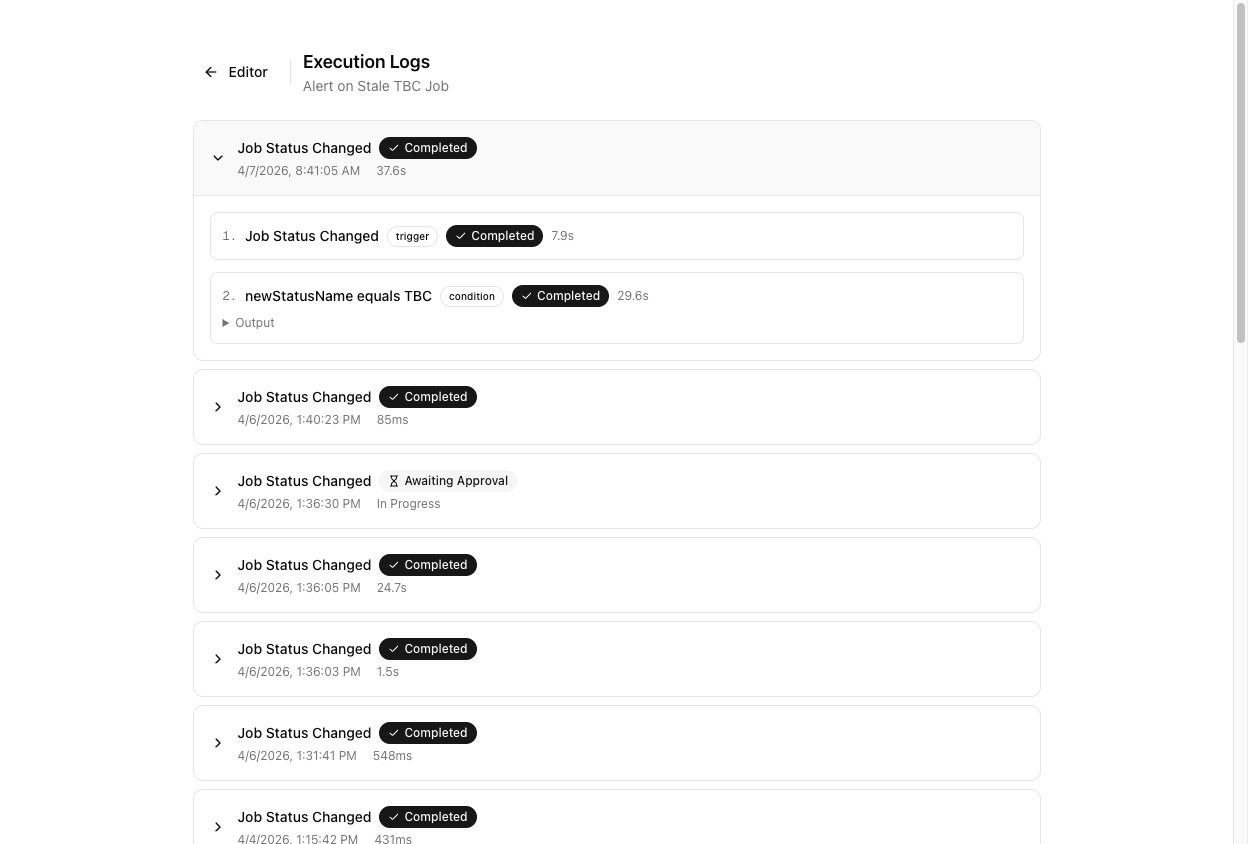
The page is headed Execution Logs with the workflow name beneath, and an Editor button to go back.
The seven statuses
| Status | Meaning | | --- | --- | | Completed | Ran to the end | | Failed | Something errored — the error text is on the row | | Running | In progress right now | | Pending | Parked, waiting — almost always a Delay | | Awaiting Approval | Paused at a Human Approval node | | Dry Run | A Test, not a real run | | Skipped | Did not apply |
These apply to whole executions and to individual steps. A successful step reads Completed.
Dry Run entries are your own Test clicks. If you find runs you do not remember triggering, that is usually what they are.
Reading an execution
Each row shows the trigger, a status badge, when it started, and how long it took. In Progress in the duration column means it has not finished yet — it is not a status.
Click a row to expand it. Steps are numbered, each with its node label, a raw node-type badge, a status, a duration, any error, and a collapsible Output block.
The Output block shows what the step produced, not what it received. There is no view of a step's input data.
Failed steps are outlined in red. The list pages 20 at a time with Previous / Next, and it does update live — unlike the job Messages tab, you do not need to refresh here.
The empty state reads "No executions yet. This workflow hasn't been triggered."
The two most useful facts
A Pending execution is a working delay. A workflow waiting out a Wait 2 days sits as Pending with its resume time in the step's Output. That is not a stuck workflow — it is a patient one.
No executions at all means it never fired. If the list is empty, stop reading the log and go check the Status badge on the workflow list. An Inactive workflow produces no executions, and that is by far the most common cause.
Tutorial: debug an automation that did nothing
Your booking confirmation SMS did not go out. Work it backwards.
Settings > Workflows → pencil on the workflow → Logs.
"No executions yet" means the workflow never ran at all — so nothing inside it can be the problem. Go Back and look at the Status badge. If it says Inactive, click it. You have found your bug.
If it is Active and still nothing, your trigger is wrong for the event you expected. A workflow on Job Created will never fire when a status changes.
Click the most recent run. Now read the steps in order — the first one that is not Completed is where it stopped.
A Skipped step means the branch did not apply. The workflow ran and decided not to act.
Click the condition node in the editor and compare it against reality. newStatusName equals Booked will skip if your status is actually named Confirmed — the value is a literal string and it has to match your status name exactly.
Look at the step's Output for a resume time. There is a delay in this workflow and it has not elapsed. Nothing is broken; come back later.
A Human Approval node is holding it. Somebody was sent an approval request and has not responded. It will time out on its own — 72 hours by default.
The error text is on the step. Webhook returned 500 is the external service, not VanMan. A Xero step failing usually means the job had no cost items.
Then the workflow did its job and the message left. The problem has moved downstream — open the job's Messages tab and read the delivery status there. Workflow Completed means "sent", not "delivered".
Reach for Test in the editor rather than repeatedly triggering real jobs. It runs the workflow against a real Job ID, sends nothing, and logs a Dry Run you can expand exactly like a real execution.