
Using template variables
Use variables in message templates to auto-fill customer names, dates, addresses, and pricing.
Variables are placeholders that fill themselves in from the job when a message is sent. Write a template once with {{CustomerFirstName}} in it, and every customer gets their own name.
Variables use double curly braces and PascalCase: {{CustomerName}}. Single braces do not work. If you write {customer_name}, VanMan does not recognise it as a variable at all — it is treated as ordinary text and sent to your customer exactly as typed. This is the single most common way to send a broken message.
Never type a variable from memory
The Insert Variable panel on the right of the template editor is the authoritative list. Click a variable and it drops in at your cursor — into whichever field you last clicked, subject or body. It has a search box.
Use it every time. Typing from memory is how you get {{CustmerName}}, and a typo'd variable does not announce itself — see below.
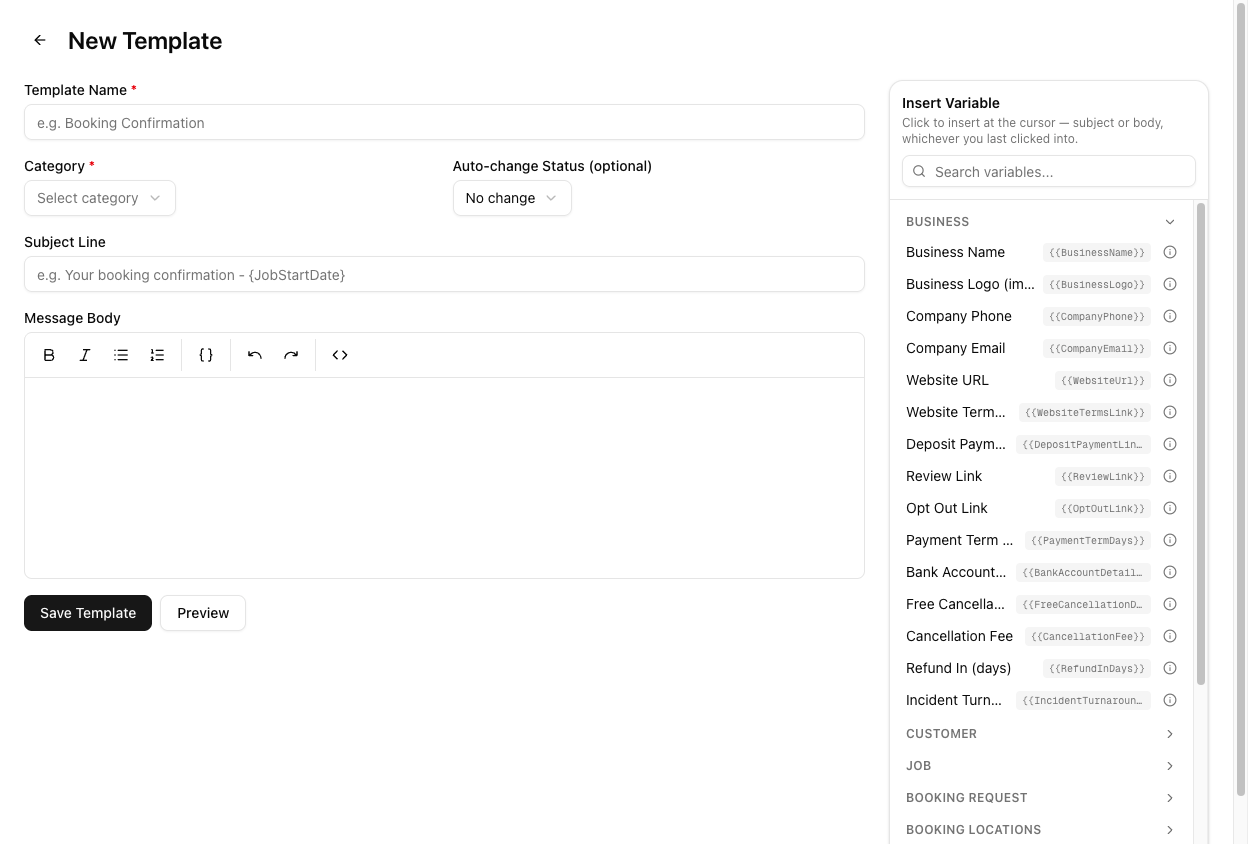
The variables you will use most
| Variable | Fills in with |
| --- | --- |
| {{CustomerName}} | The customer's full name |
| {{CustomerFirstName}} | Just their first name |
| {{CustomerEmail}} | Their email address |
| {{JobNumber}} | The job reference |
| {{JobStartDate}} | The scheduled date |
| {{JobStartTime}} | The scheduled start time |
| {{PickupAddress}} | The pickup address |
| {{DropoffAddress}} | The drop-off address |
| {{TruckName}} | The assigned truck |
| {{BusinessName}} | Your trading name |
| {{CompanyPhone}} | Your phone number |
| {{ReviewLink}} | Your review link |
There is no driver, crew, or team leader variable. If you want to tell a customer who is coming, the closest thing available is {{TruckName}}. Any template you have seen referencing a crew member's name was never going to work.
The full list
The complete set is grouped into thirteen categories — Business, Customer, Job, Booking Request, Booking Locations, Incident, Job Financials, Invoice, Quote, Invoice & Quote Line Fields, Job Addresses, Job Address Fields, and Estimate Preview — plus the Estimate and Estimate Materials groups used by estimate templates.
Browse them all at Settings > Template Variables.
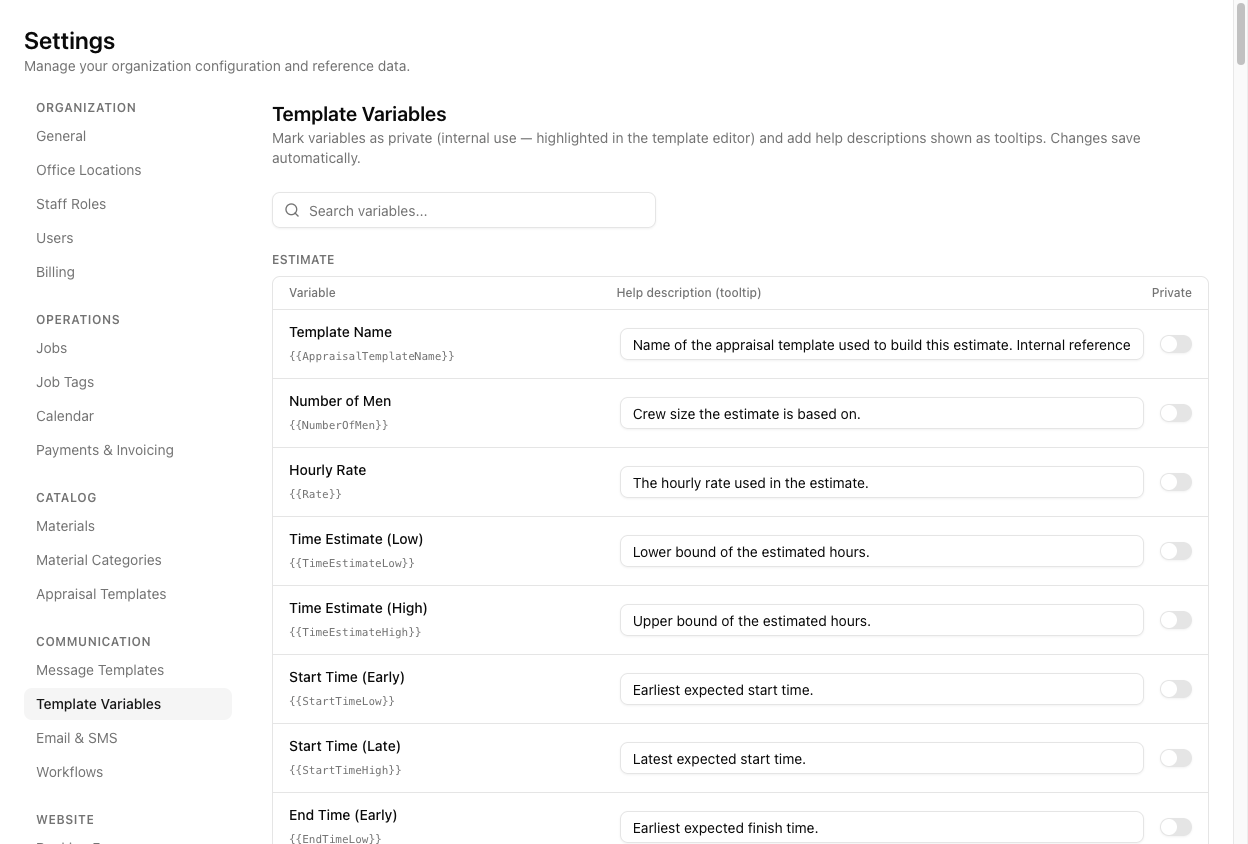
On this page you can:
- Mark a variable Private. It then renders in red with a PRIVATE badge in the template editor — a visual warning that it is internal and should not go to a customer.
- Add a help description. It shows as a tooltip in the editor, which is how you stop a colleague guessing what
{{CubicMetresLow}}means.
Changes save automatically.
Beyond simple substitution
Lists. Some variables expand into multiple lines — {{InvoiceItems}} and {{QuoteItems}} render every line on the document, not a single value.
Filtered lists. Materials variables accept a filter: {{Materials[category=Travel]}} renders only the Travel materials, and {{MaterialsTotal[category=Travel]}} totals only those.
Images. {{BusinessLogo}} renders your actual logo as an image, not a URL.
Conditional blocks. Templates support {{if ...}} / {{else}} / {{endif}} so a paragraph can appear only when it applies.
When a variable does not resolve
This is worth understanding properly, because the two failure modes look nothing alike:
- A correctly-formed variable that VanMan does not recognise — say you typo
{{CustmerName}}— is replaced with nothing. It vanishes. Your sentence silently loses a word. - A single-brace
{customer_name}is not recognised as a variable at all and is sent verbatim to the customer.
The Preview does not help you catch typos the way you might expect. Preview renders with sample data and blanks out unknown variables — so a misspelt {{CustmerName}} disappears in the preview rather than showing up as an obvious error. An empty gap where a name should be is the error signal. Read previews for missing words, not for red text.
Tutorial: find and fix a broken template
A customer has received a text reading "Hi , your move is confirmed." Here is the diagnosis and repair.
The customer saw the placeholder itself. That is the signature of single braces — VanMan never touched it, so it went out as typed. If the name had simply been missing ("Hi , your move..."), the cause would be different: a correctly-braced but misspelt variable.
Go to Settings > Message Templates, find the template, and click the pencil icon in the Actions column. Clicking the row itself does nothing.
In Message Body, delete {customer_name} entirely. Do not try to fix it by adding braces — you will only be guessing at the name, and the correct one is CustomerFirstName, not customer_name.
Put your cursor where the name belongs. In the Insert Variable panel, search first. Click Customer First Name. It inserts {{CustomerFirstName}} correctly braced and correctly spelled.
Now read the whole body for other single-brace text. If this template had one, it probably has more — they tend to be written in batches. Anything in {single braces} is broken.
Click Preview. Read the rendered text as a sentence. Hi Jane, your move is confirmed is right. Hi , your move is confirmed means a variable resolved to nothing — you have a typo in a double-braced name, and the panel is the fix.
Click Save Template.
Open a real job, click Send Message, and select the template. The body now fills with that job's actual customer name. This is the only check that proves it against real data rather than sample data — but do not click send unless you mean it.
If a variable resolves to nothing on a real job but works in preview, the variable is fine — the job is missing that data. {{TruckName}} is empty on a job with no truck assigned. Preview always has sample data; real jobs do not.