
Setting up your material catalog
Build your categories and materials — the priced items that feed job costing and invoices.
Your catalog is the priced list of everything you charge for — crew rates, travel, packing materials. It feeds job costing, quotes, and invoices. It lives across two settings pages, not one:
- Material Categories (Settings > Material Categories) — the groupings.
- Materials (Settings > Materials) — the individual priced items.
Build the categories first, then the materials that live in them.
Material Categories
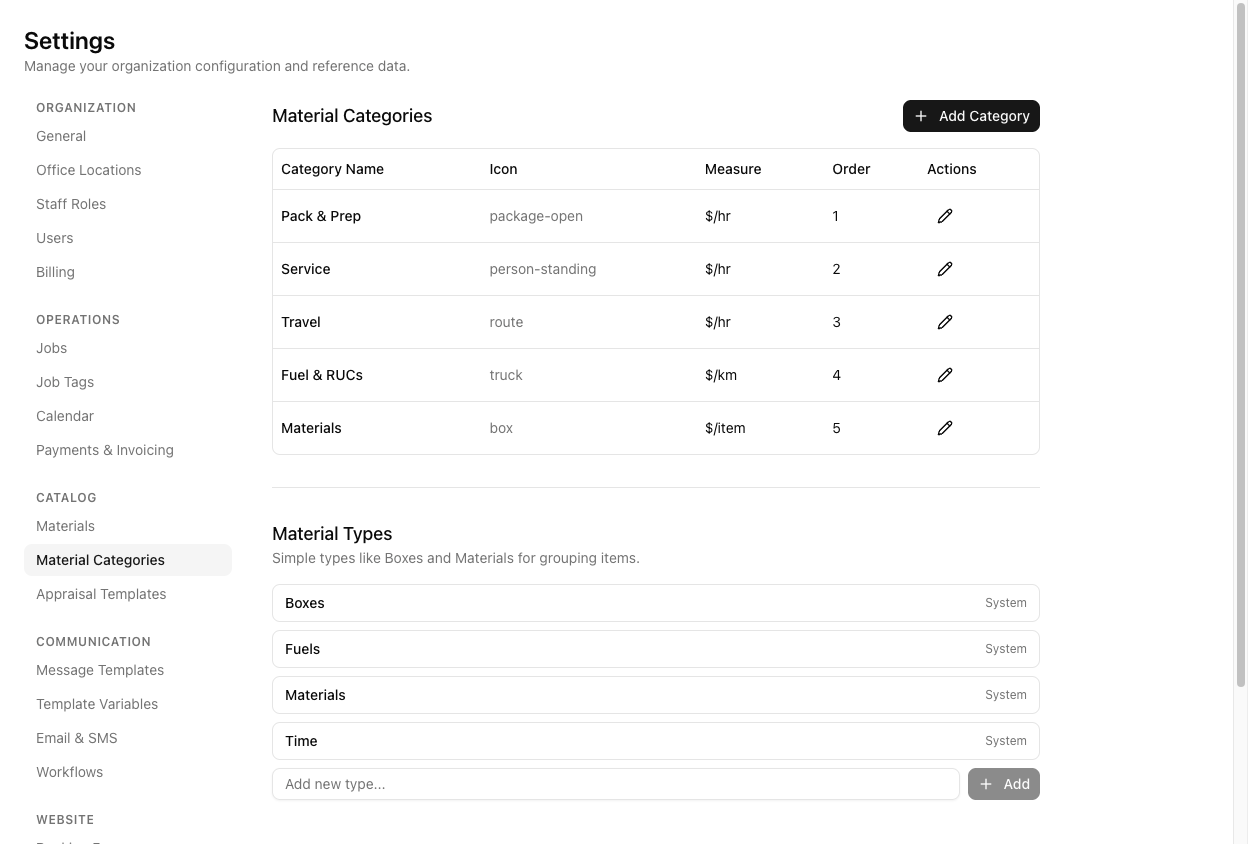
Click Add Category. Each has a Category Name, an icon, an Order, and a Measure Unit.
Measure Unit is one of exactly three: $/hr, $/km, or $/item — and it is locked once the category exists. Choose it deliberately; you cannot change it later without recreating the category. Service is $/hr, travel-distance is $/km, boxes are $/item.
A new account seeds five categories: Pack & Prep, Service, Travel, Fuel & RUCs, and Materials.
Each category also carries an Invoice Account Code for Xero — see connecting Xero.
Materials
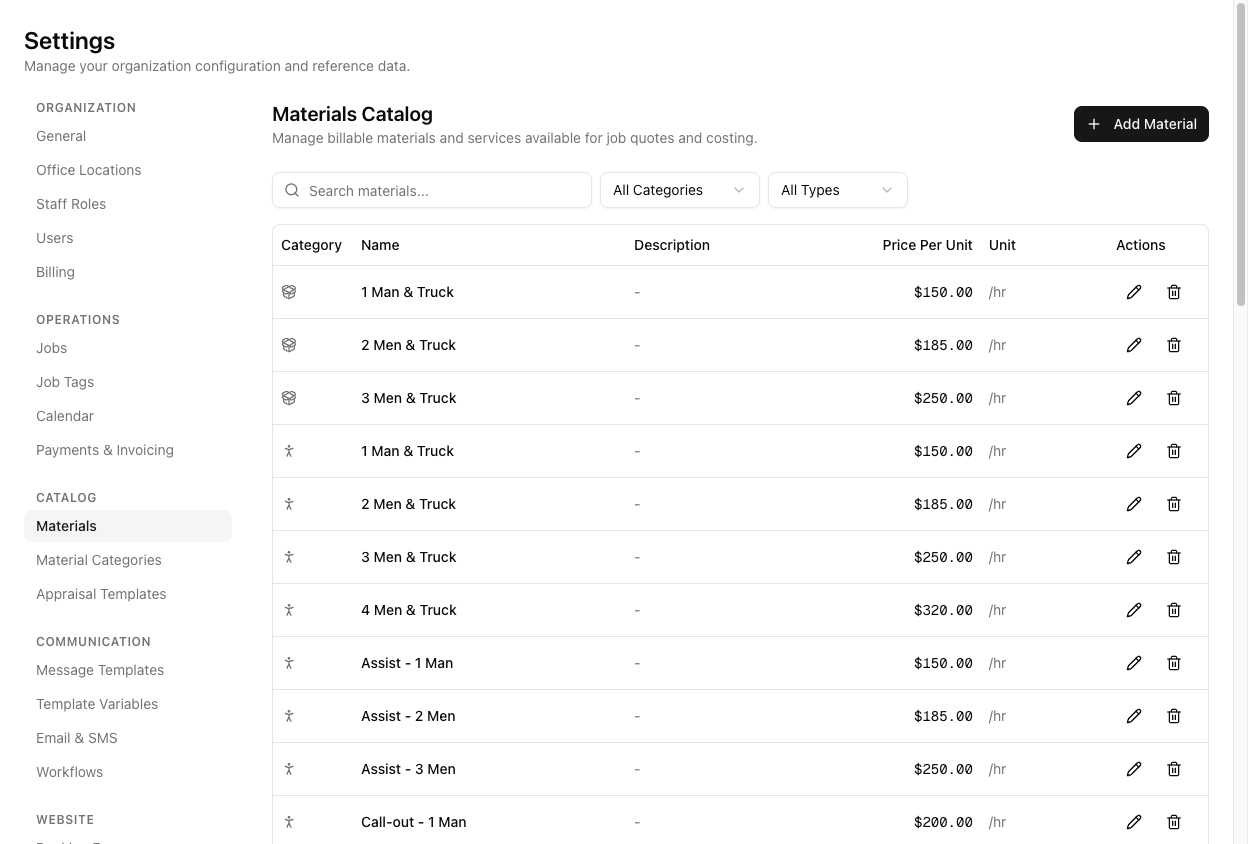
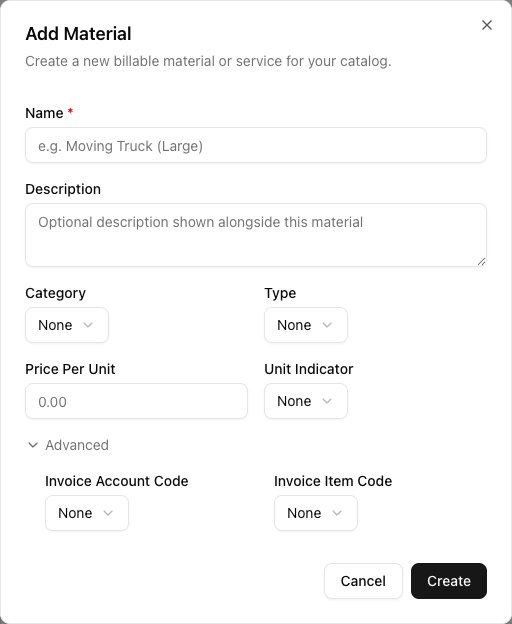
The Materials page is a flat, filterable table — not a set of category folders. Search by name, or filter by All Categories / All Types. Click Add Material (one button, top of the page) and fill in:
- Name (required)
- Description
- Category
- Type — a separate grouping (Boxes, Fuels, Materials, Time), not the unit
- Price Per Unit
- Unit Indicator — the per-unit label: /hr, /half day, /day, /km, /item, /usage, /cost, /quoted, or /fee
Type and Unit Indicator are different fields. Type is a broad grouping; Unit Indicator is what the price is per. Do not expect "each" or "per hour" as options — the real list is the one above.
Under Advanced sit the Xero Invoice Account Code and Invoice Item Code. Click Create.
Changing a material's price only affects new jobs. Jobs already costed keep the price they had at the time, so re-pricing your catalog never rewrites history.
Materials in use cannot be deleted — VanMan blocks it if active job lines reference them.
Tutorial: add a packing-materials line
You want to start charging for wardrobe boxes.
Go to Settings > Material Categories. There is a seeded Materials category with Measure $/item — right for a box. If you needed a new category, you would set its Measure now and be unable to change it later.
Go to Settings > Materials. This is a different page from Categories, and it is a flat table. Click Add Material — there is one button, not one per category.
Name: Wardrobe box (hire). Category: Materials. Type: Boxes — remember Type is a grouping, separate from the unit.
Price Per Unit: 8.00. Unit Indicator: /item. Now it prices as $8.00 /item on a job, and a quantity of 5 comes to $40.
Expand Advanced and set the Invoice Account Code to your materials sales account. Do it now — a material with no code is a Xero rejection waiting to happen the first time it appears on an invoice.
Click Create. Open a job's Costs tab, find the Materials card, Add Item, and add your wardrobe box. It prices correctly and is ready to invoice.
If you later raise the price to $9, jobs already costed stay at $8. Only new jobs pick up the new price — you will not accidentally re-bill an old job.