
The driver day view
How the Today and Jobs tabs work on the crew app, and what each screen actually shows.
The app has four tabs: Today, Jobs, Time, Profile. The two you live in for the day view are Today and Jobs — and they are different screens doing different things.
Today
Today is a shift dashboard, not the full job list. It shows:
- A day summary — " jobs · est. hrs on the tools · truck ".
- A route map for the day.
- The Start Day / On shift control.
- A single "Up next" job card — your next job that isn't completed, for the selected truck.
- A Report incident or damage action.
- A Logged today list of any incidents.
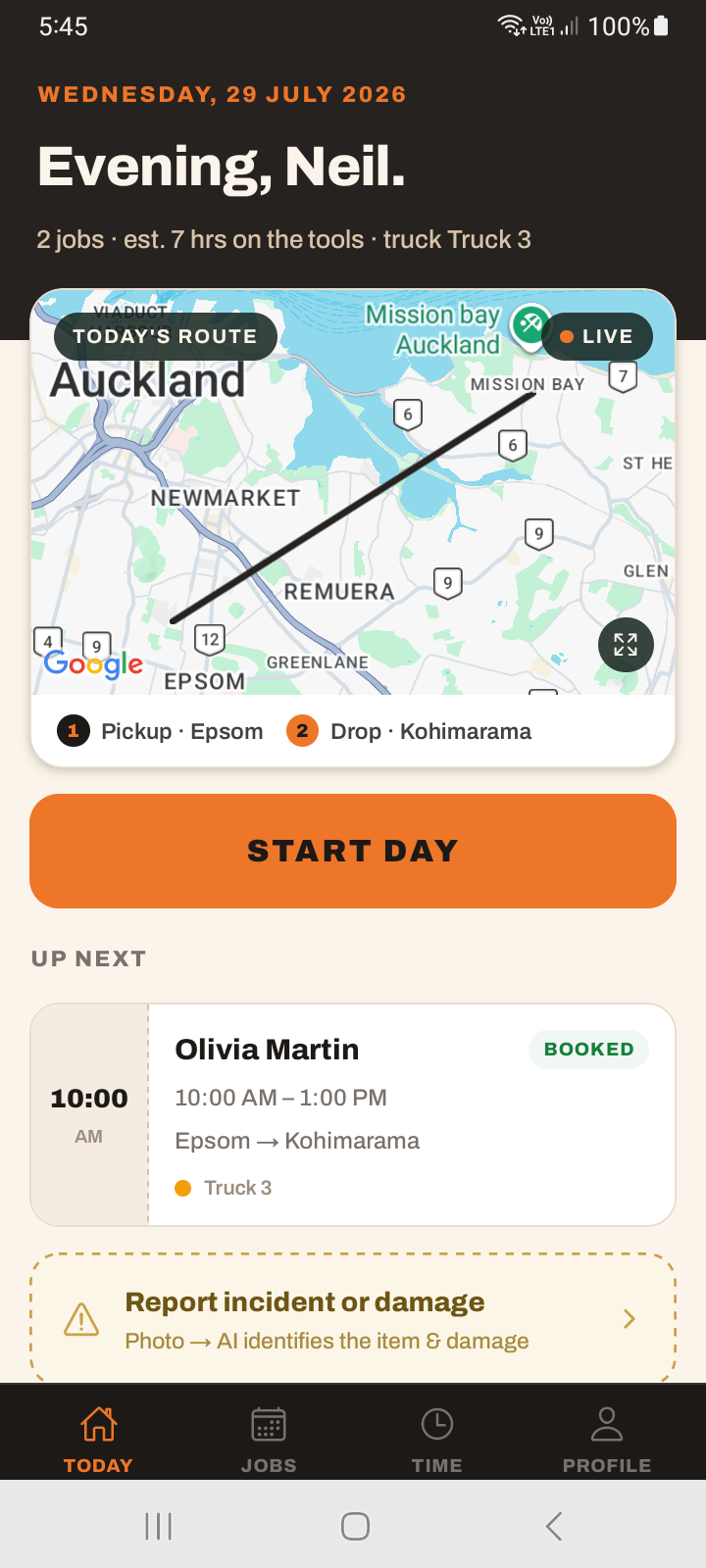
Today shows one "Up next" card, not your whole day. The complete list of your jobs is on the Jobs tab. If you are looking for "all my jobs today", that is the Jobs tab — Today is about the shift and what's next.
Jobs
The Jobs tab is the full list, time-ordered, with a List / Calendar view toggle and a filter (by truck and status). Tap a job to open its detail screen.
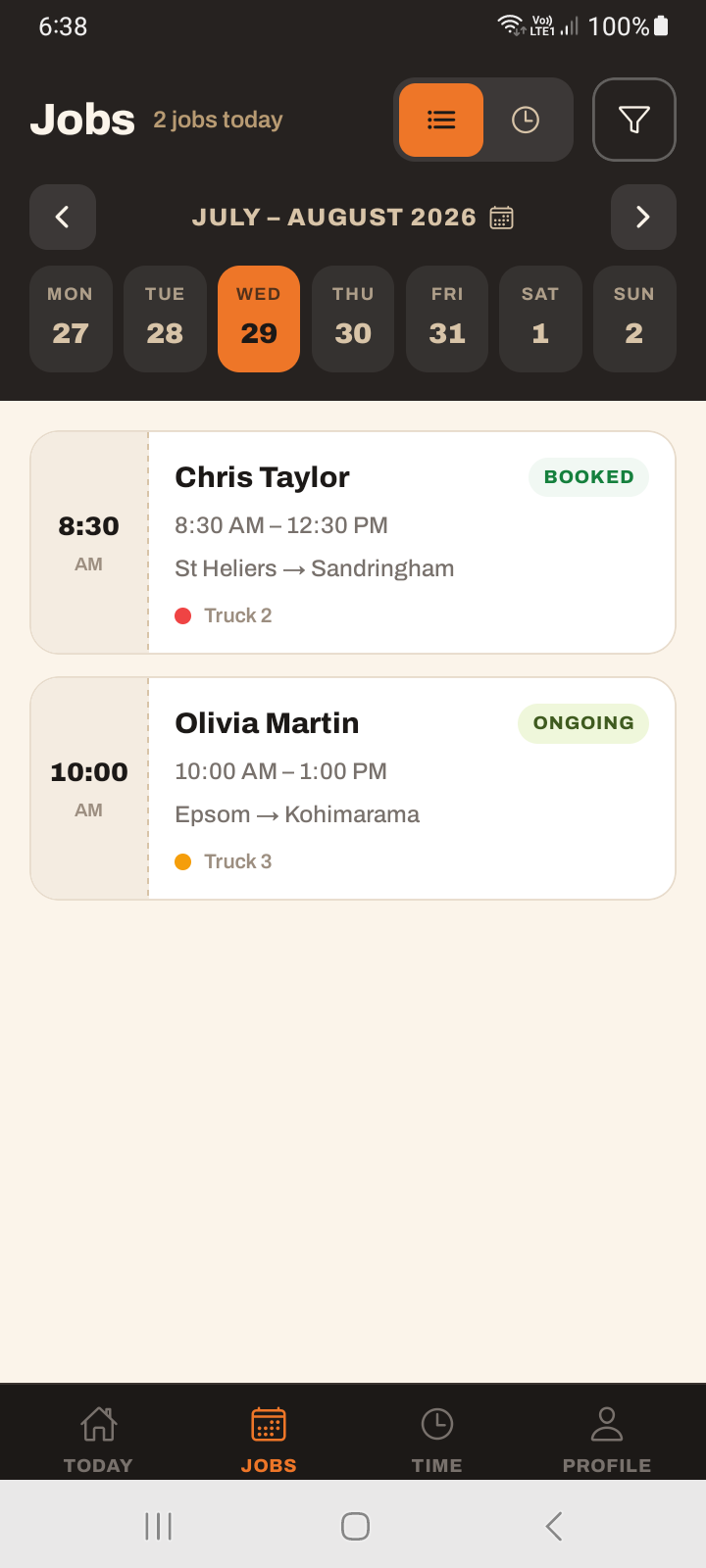
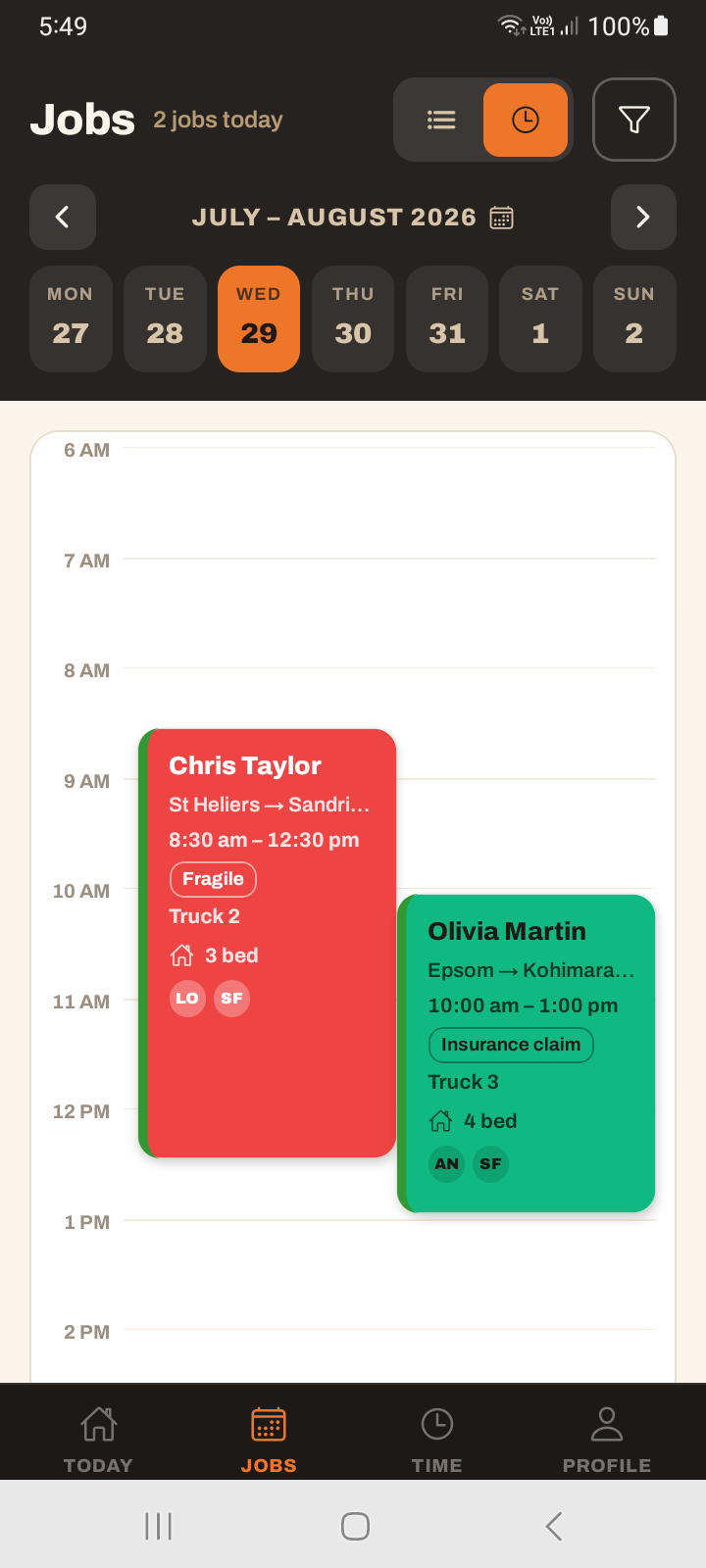
Jobs are read-only on the app — there is no way to create a job from your phone. Jobs are made in the office. The app is for working the jobs you are given, not booking new ones.
Reading a job card
A job card shows a suburb → suburb route (not the full addresses), the time, a status pill, the truck's colour dot and name, and small heads-up icons for settlement / keys / storage. Multi-truck jobs show several colour dots.
Tapping the card opens the job detail screen — that is where the phone number, the address navigation, and the Start control live. There are no quick actions on the card itself; the card just opens the job.
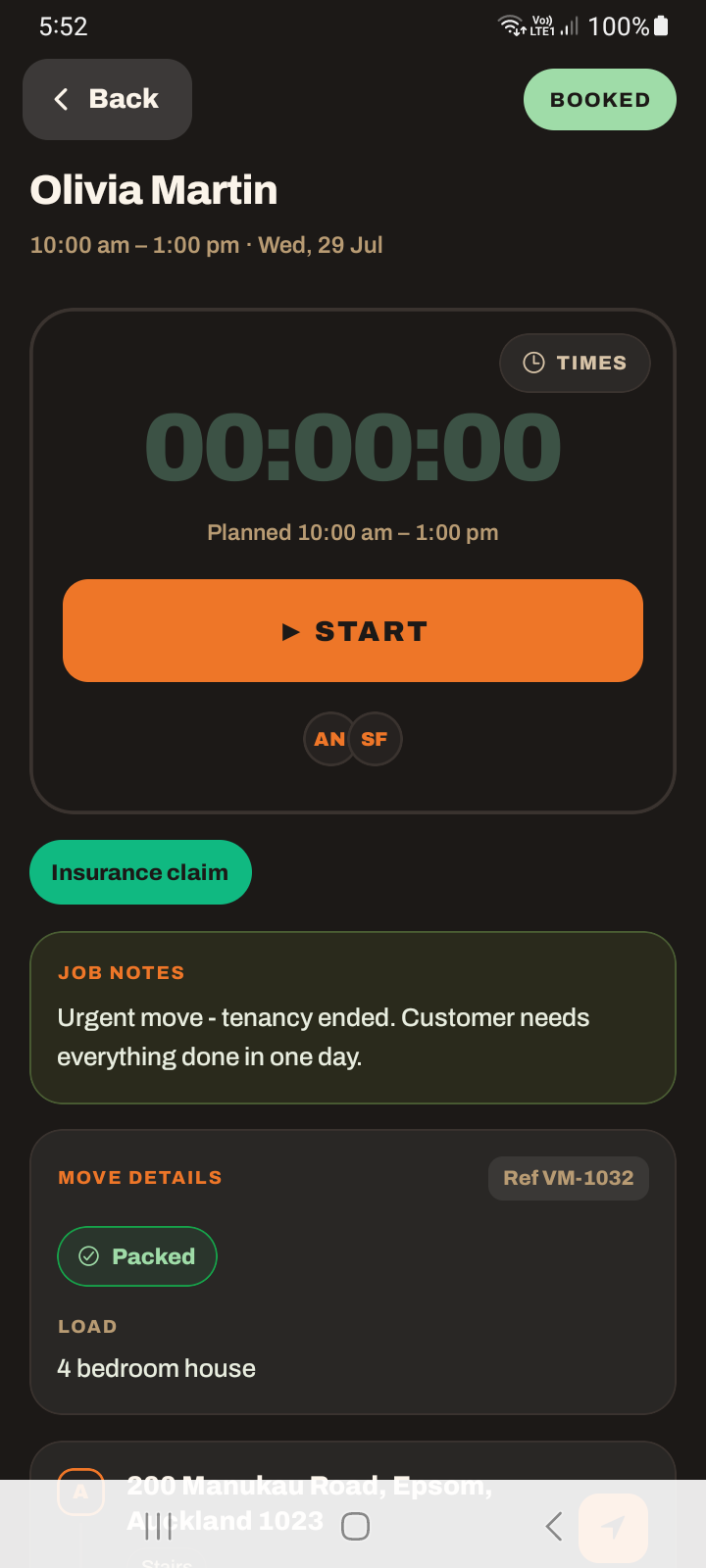
Navigation opens your phone's maps
Tapping an address to navigate opens Apple Maps on iPhone and Google Maps on Android — whatever your phone uses. It is not a maps screen inside the app, and on iOS it is specifically Apple Maps.
Tutorial: start your working day on the app
You've arrived and want to see what's on.
The Today tab greets you with the day summary — how many jobs, estimated hours, which truck. Read that first for the overview.
Today shows your Up next job. Do not hunt for your whole day on this screen — it is not here by design. Up next is what to head to now.
Tap the Jobs tab for the complete, time-ordered list. Use the List / Calendar toggle and the filter if you run more than one truck and want to see just yours.
Tap a job card. Everything you do — call the customer, navigate, start the timer — is on the job detail screen, not the card. The card only shows suburbs and a status; the detail has the controls.
Tap the address to navigate. It hands off to Apple Maps (iPhone) or Google Maps (Android). Do not expect an in-app map to drive by.
If a job is missing, it was not booked for you in the office — you cannot add it from the phone. Call dispatch; jobs are created on the web.