
Tracking time on a job
Start and finish the delivery timer, pause with a reason, and adjust the actual times.
Each job has a delivery timer. You start it when you begin work and finish it when you're done, and the elapsed time feeds the job and the timesheets.
Starting and finishing
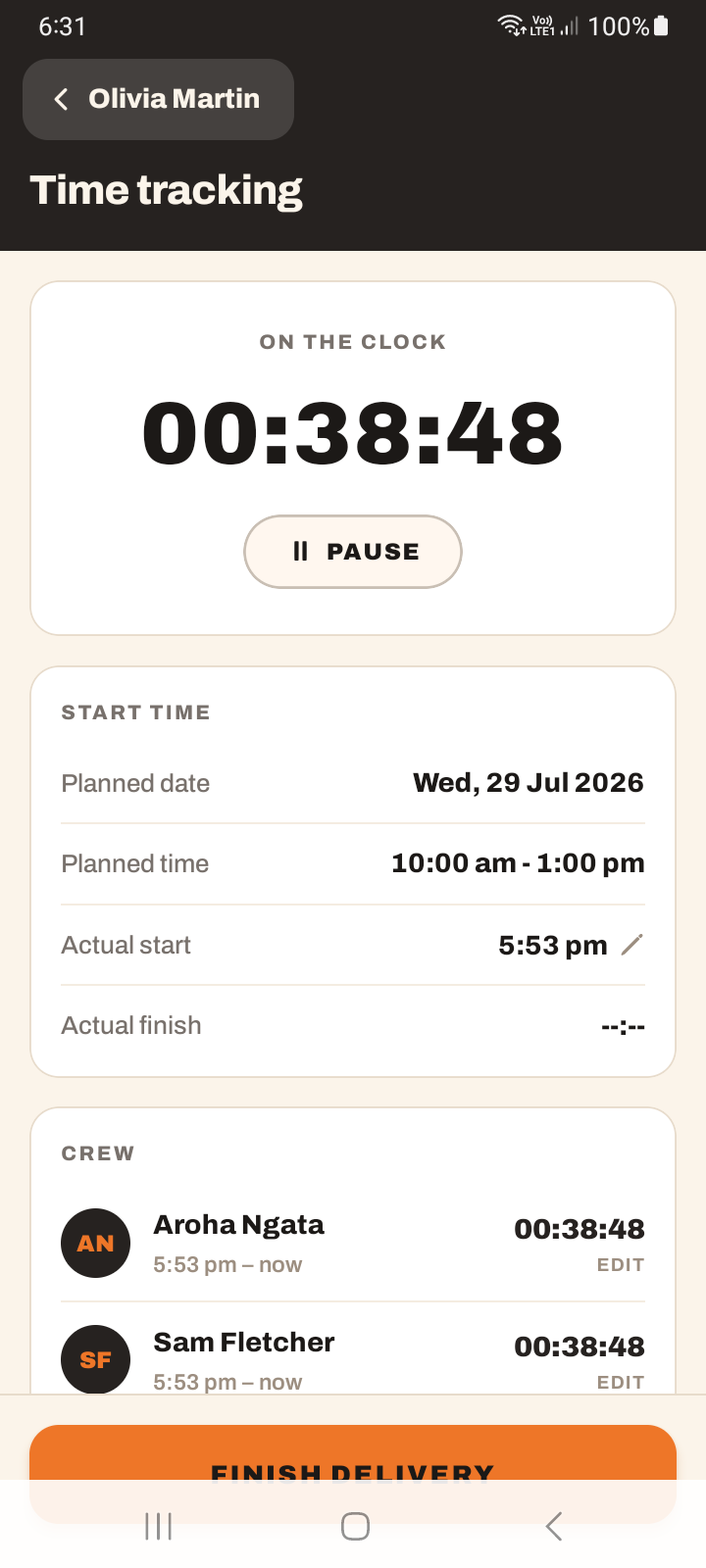
On the job detail screen, a large timer shows the elapsed time. The controls are ▶ Start and ■ Stop & finish. (On the dedicated Time screen the bottom buttons read START DELIVERY and FINISH DELIVERY.)
- Start sets the job to Ongoing.
- Stop & finish sets it to Completed.
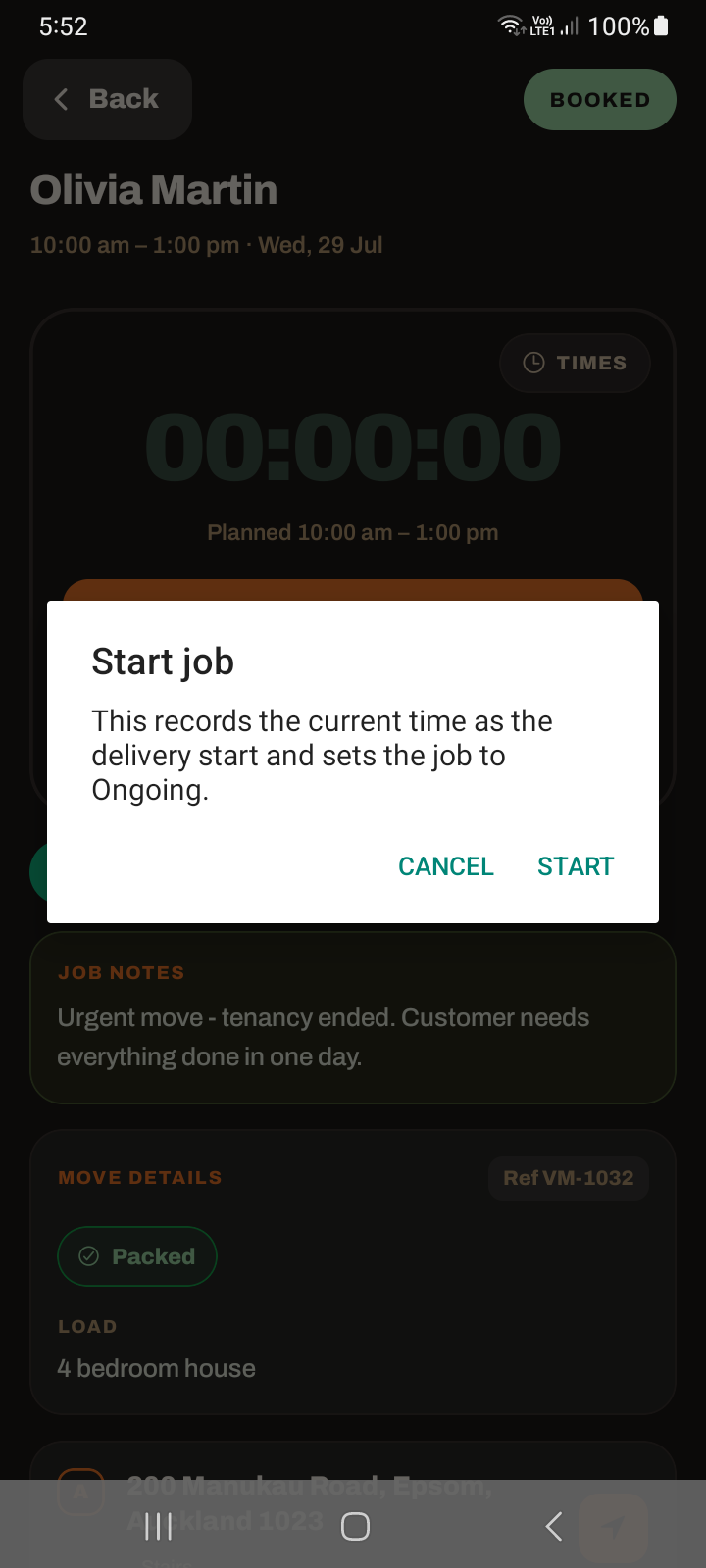
There is also an Undo start if you started by mistake — it puts the job back to Booked.
How the timer actually works
There is no background timer running on your phone. When you start, the app records the start time on the server. The number you see is simply the difference between now and that stored time — a clock, calculated live.
This is why it is always correct when you come back to it, even after locking your phone or switching apps: nothing was "running" to drift. But it also means you do not need to keep the app open or leave the screen on to "keep the timer going" — you can't stop it by leaving.
The timer pill
When you leave a running job's screen, a floating timer pill appears near the bottom of the app (you can drag it), so you can see the job is still on and jump back to it. It is not a bar at the top of the screen.
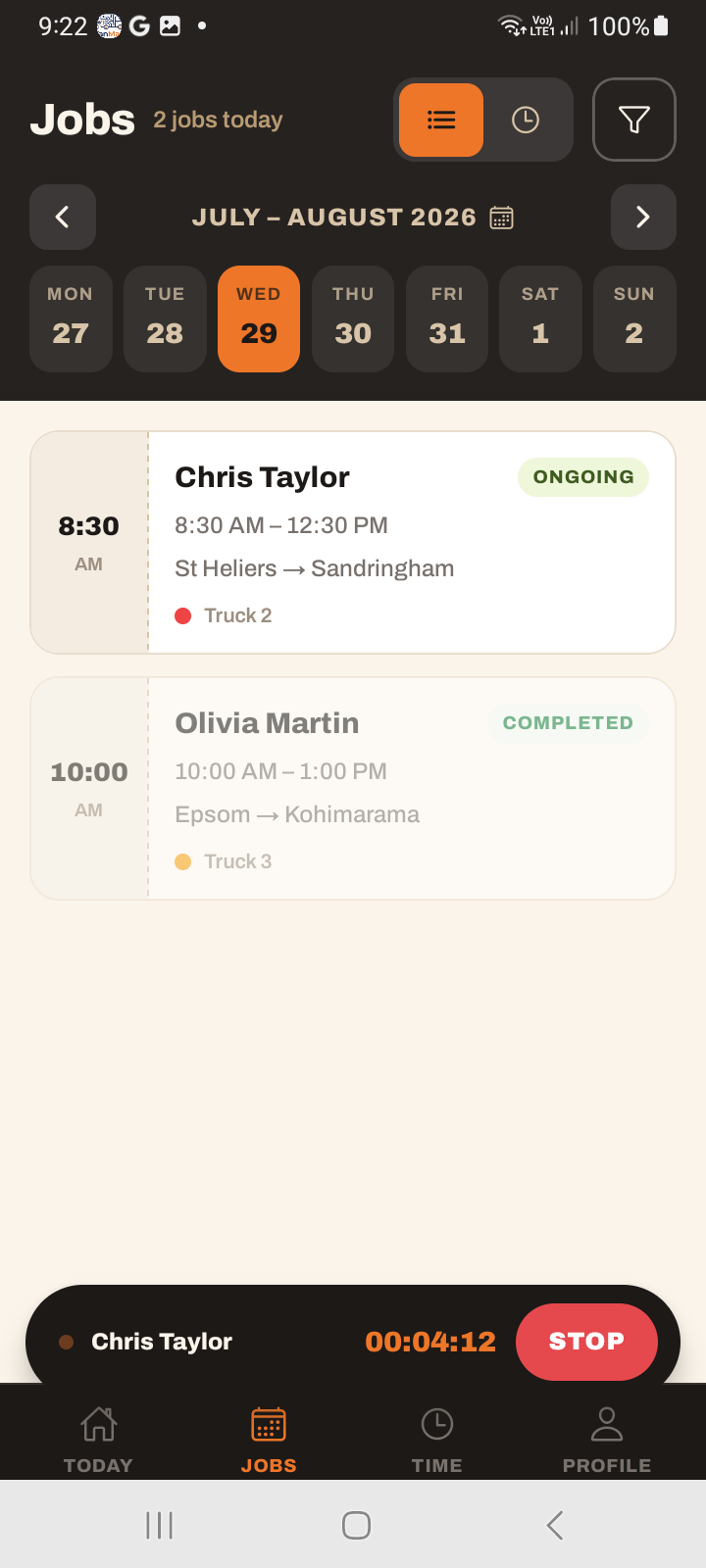
If the pill gets in your way, you can hide it: turn off Floating timer pill on the Profile tab. The timer itself keeps running either way.
Pausing
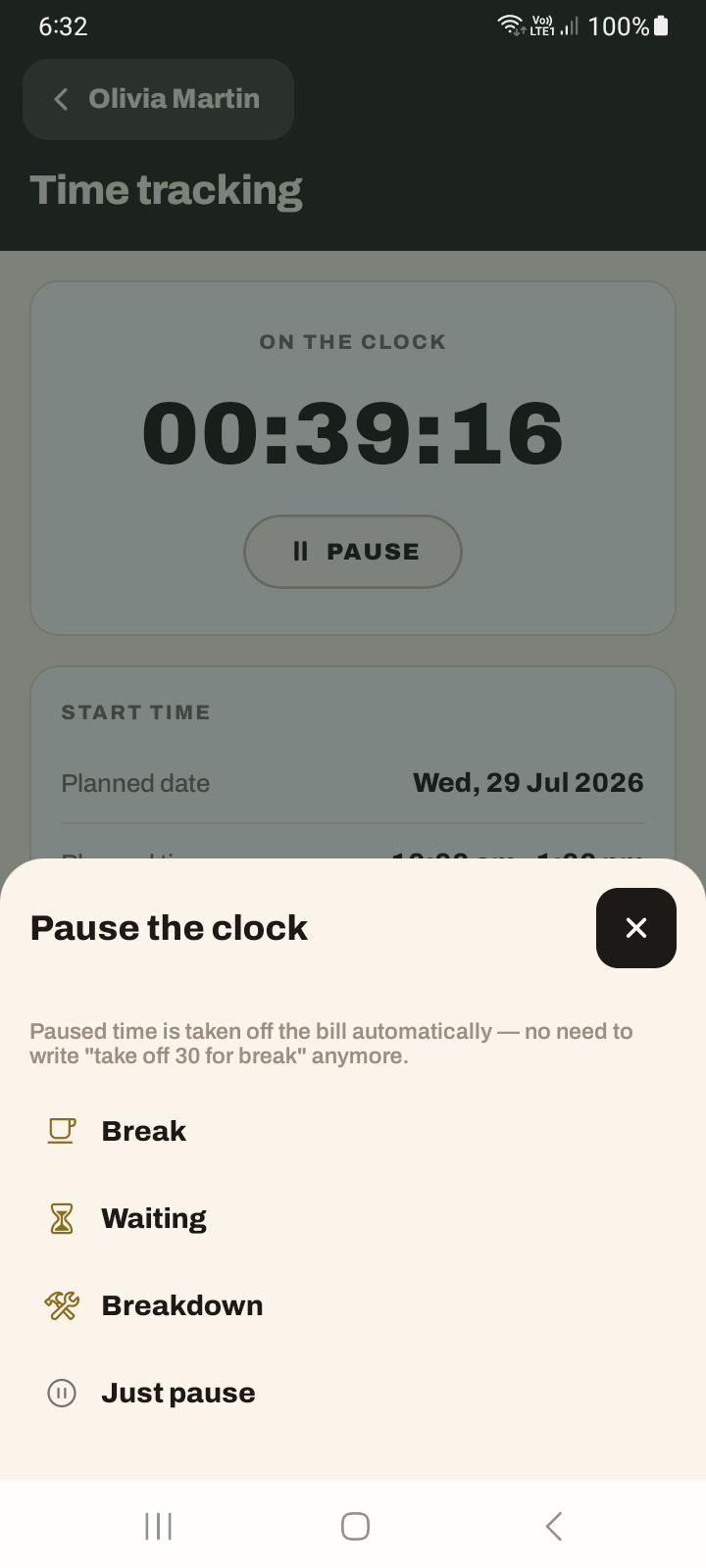
Tap pause and choose a reason: Break, Waiting, Breakdown, or just pause. A "Paused" card shows, and paused time is deducted from the billable total. Resume when you're going again.
Adjusting the actual times
The actual start and actual finish are tappable (24-hour HH:MM), so you can correct them if you started the timer late or forgot to stop it. If a job's total looks extreme (over 10 hours or under 15 minutes), the app asks "Does this look right?" before it sticks.
You must be online
Start and Finish need a connection. Even though the button may read "▶ Start (offline)" when you have no signal, it is disabled — you cannot actually start or finish a delivery offline. The clock relies on the server timestamp.
So on a job with no signal, get connectivity before you tap Start, or the timer will not run. See using the app offline.
Tutorial: time a job accurately
On the job, tap ▶ Start as you begin loading. The job flips to Ongoing and the timer starts counting from now. If you have no signal, this button won't work — get connected first.
Lock your phone, take calls, switch apps — the timer is a clock against a stored start time, not something running that you can accidentally kill. It will be right when you look again.
Working across screens? The floating timer pill near the bottom shows the job is still timing. Tap it to return. Drag it out of the way if it covers something.
Stopped for lunch? Tap pause and choose Break. Waiting on keys? Waiting. The paused time comes off the billable total, so the customer isn't charged for the gap — which is why choosing the real reason matters.
Forgot to hit Start until you were half-loaded? Tap the actual start time and correct it. The timer is convenient, but the actual times are what count — make them true.
Tap ■ Stop & finish. The job goes Completed. If the total is wildly long or short, the app asks "Does this look right?" — a prompt to catch a timer left running overnight. Confirm only if it's genuinely right.