
Inviting your team
Add users to your VanMan account and give them the right role, from Admin to view-only.
Every person who signs into VanMan needs an invitation and a role. The role decides what they can see and do, so it is worth understanding the five before you start sending invites.
Team access lives under Settings > Users, on the page titled User Management.
The five roles
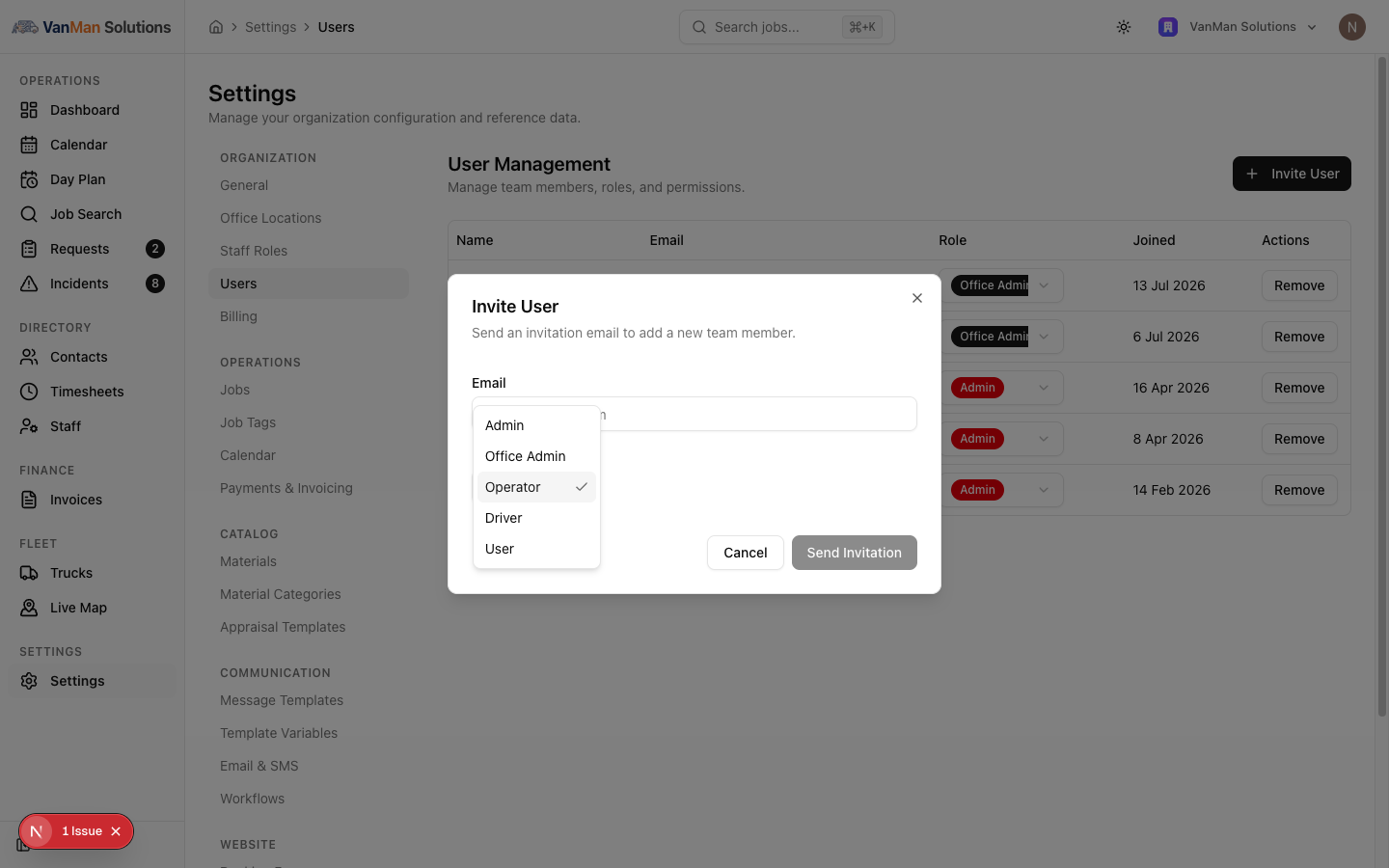
- Admin — everything, including billing. Admins always hold every permission. Best for owners.
- Office Admin — everything except billing. This is the right role for an office manager who runs the business day to day but should not touch the subscription.
- Operator — the dispatch and coordination role. Operators can create, edit, and delete jobs and bookings; manage contacts, materials, trucks, and staff; send messages and edit templates; create and send invoices; and view, edit, and approve timesheets. They can view workflows but not change them, and they cannot reach Settings, user management, or billing.
- Driver — deliberately narrow: view jobs, view the calendar, and update deliveries. Nothing else. This is what your on-road crew get.
- User — view-only. Jobs and calendar, read access, nothing more.
These are the shipped defaults. Every role except Admin can have its permissions adjusted from the admin portal — Admin is always granted everything regardless. If a role in your account behaves differently to the description above, its grants have been customised.
User roles are not staff roles. The five above control access to the app. Settings > Staff Roles is a separate list of job titles for crew assignment — things like Driver, Mover, or Team Leader. A person can hold a staff role for scheduling without having a login at all.
How to invite someone
Go to Settings > Users. The table lists everyone with access: Name, Email, Role, when they joined, and a Remove action.
Click Invite User. The dialog asks for two things only: an Email and a Role. There is no name field — the name comes from the person's own profile when they accept. You invite one person at a time.
Choose from the dropdown, which defaults to Operator. If in doubt, start people lower than you think — you can change a role later from the dropdown in the table without re-inviting.
Click Send Invitation. They receive an email with a link to set up their account. Once they accept, they appear in the table with the date they joined.
Changing or removing access
Change someone's role straight from the Role dropdown in their table row — it takes effect on their next page load. Remove revokes their access entirely.
Tutorial: onboard an office manager and two drivers
You are bringing on one office manager and two on-road crew. Here is how to pitch the roles correctly.
Go to Settings > Users. You are currently the only Admin.
Click Invite User, enter their work email, and set Role to Office Admin. Click Send Invitation.
This is the important call: Office Admin gives them every operational power you have — settings, users, templates, workflows, invoicing — while keeping them out of billing. Making them a full Admin would hand them the subscription too, which is rarely what you want for a staff member.
Click Invite User again, enter the driver's email, and set Role to Driver. Send it.
Driver is intentionally minimal: they see their jobs and the calendar, and they can update deliveries. They cannot see invoices, pricing, or settings. That is the point — it is the safe role for a phone that lives in a truck cab.
Repeat for your second driver. There is no bulk invite, so it is one dialog per person.
All three now appear in User Management. Until they accept, they have no access — the Joined column fills in once they do.
Suppose you set a driver to Operator by accident. Do not remove and re-invite them. Open the Role dropdown on their row and change it to Driver. The change applies on their next page load.
Access is only half of it. Go to Settings > Staff Roles and make sure a role like Driver or Mover exists, then assign it to them under Staff. The user role gets them into the app; the staff role is what lets you assign them as crew on a job.
If someone reports a "forbidden" page rather than a missing menu item, they are signed in with a role that lacks that permission — not a bug. Check their role in User Management first.